Published 2026-02-12.
Last modified 2026-02-23.
Time to read: 3 minutes.
llm collection.
This article describes how to set up web search for Claude Code when using MiniMax M2 as the backend model. This works when using Mini-Agent or Claude Code CLI with MiniMax M2.
The Problem
Claude Code CLI has a built-in WebSearch tool that uses Anthropic's
backend services. When using MiniMax via the Anthropic-compatible API shim
(https://api.minimax.io/anthropic), the web search capability
does not work because MiniMax's API does not expose this functionality.
Attempting to use WebSearch with MiniMax results in:
API Error: 400 {"type":"error","error":{"type":"invalid_request_error",
"message":"invalid params, function name or parameters is empty"}}
The Solution
The most efficient way to provide this capability is NOT via an MCP server
(they are inefficient and require a lot of tokens to operate), but instead to
call a program like ddgr
(DuckDuckGo Results in JSON).
ddgr is a command-line interface to DuckDuckGo. It provides JSON
output without requiring an API key, and it does not use web scraping.
Installation
ddgr
Install ddgr using uv:
$ uv pip install ddgr
Claude Code CLI / MiniMax Settings
Make a directory to hold the settings specific to running MiniMax M2 with the Claude Code CLI.
$ mkdir ~/.minimax
Create ~/.minimax/settings.json with your MiniMax M2
authentication token.
{
  "env": {
    "ANTHROPIC_BASE_URL": "https://api.minimax.io/anthropic",
    "ANTHROPIC_AUTH_TOKEN": "top_secret",
    "ANTHROPIC_MODEL": "MiniMax-M2.5",
    "ANTHROPIC_DEFAULT_SONNET_MODEL": "MiniMax-M2.5",
    "CLAUDE_CODE_DISABLE_NONESSENTIAL_TRAFFIC": "1"
  }
}
The CLAUDE_CODE_DISABLE_NONESSENTIAL_TRAFFIC environment variable is a privacy
and performance toggle introduced to limit the chatter between the CLI and
Anthropic’s infrastructure.
When you are routing through an alternate provider like MiniMax, this is particularly useful because it prevents the CLI from trying to hit Anthropic-specific endpoints that aren’t related to the actual LLM completion.
Key Functions:
- Disables Telemetry: Stops the CLI from sending usage statistics, error reports, and event tracking to Anthropic’s collectors.
- Blocks Automatic Updates: Prevents the CLI from checking for new versions or downloading “hot patches” on startup.
- Suppress Remote Experiments: Stops the CLI from fetching “feature flags” (server-side toggles that change UI or behavior) from Anthropic.
- Reduces Latency: By skipping these background network requests, the CLI typically starts faster and feels more responsive.
Claude Code checks .claude.json (the state file) for a key called
hasCompletedOnboarding. If this is missing or the file is invalid, it defaults
to the Anthropic login.
Create or update ~/.minimax/.claude.json to include this:
{
  "hasCompletedOnboarding": true
}
Anthropic's servers provide access to the Claude LLMs, and also provide the
ability to search the internet (websearch). MiniMax-M2 LLMs are
unable to use the Anthropic websearch. The most efficient way to
provide this capability is NOT via an MCP server (they are ineffcient and
require a lot of tokens to operate), but instead to call a program like
ddgr.
To tell MiniMax-M2 to use ddgr, and not affect Haiku, Sonnet, or
Opus, create ~/.minimax/CLAUDE.md with the following content:
`websearch` does not work; use `ddgr --json "query"` via Bash instead.
Define Alias
This alias makes it convenient to launch Claude Code CLI with MiniAgent
alias minimax='CLAUDE_CONFIG_DIR=~/.minimax claude'
Reload ~/.bash_aliases so the new minimax alias
works:
$ source ~/.bash_aliases
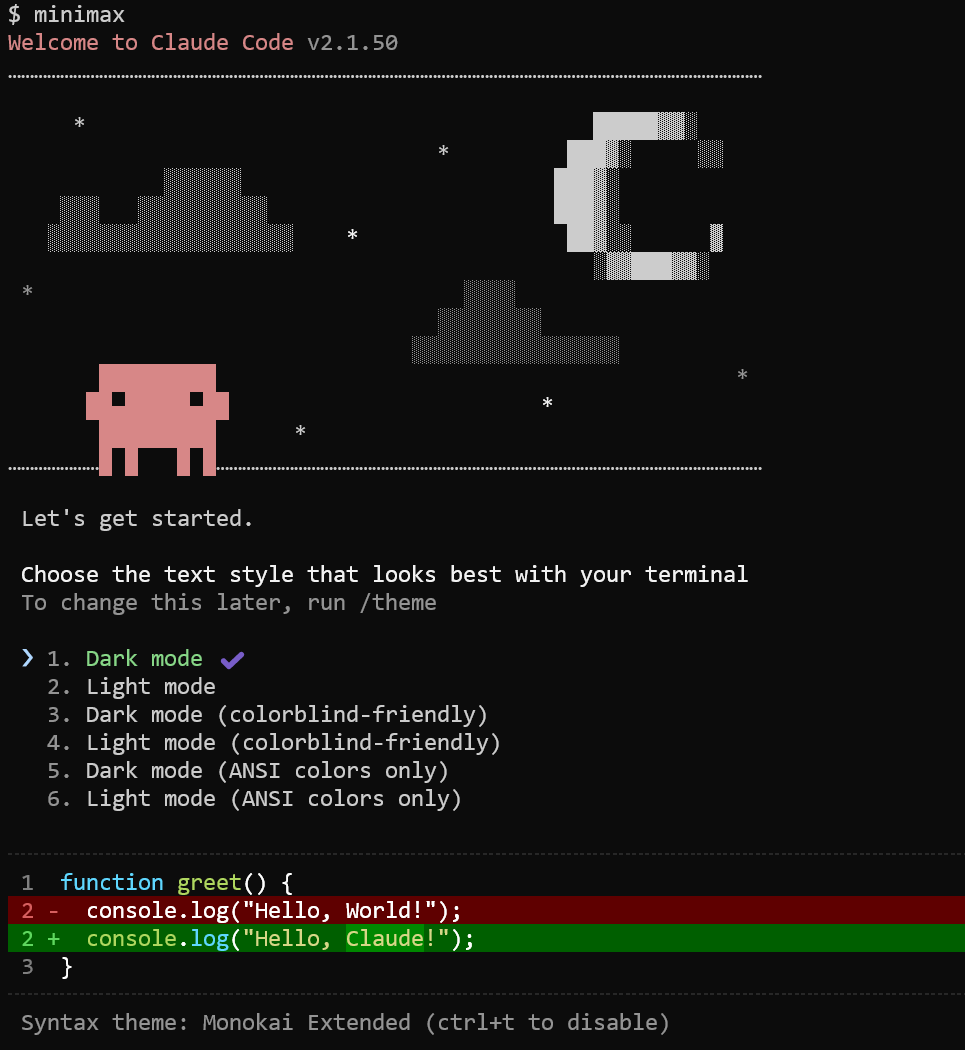
Running MiniMax M2 under Claude Code CLI
Just type the alias (minimax) at a command prompt:
Claude Code CLI Help
$ claude -h
Usage: claude [options] [command] [prompt]

Claude Code - starts an interactive session by default, use -p/--print for
non-interactive output

Arguments:
  prompt                                            Your prompt

Options:
  -d, --debug [filter]                              Enable debug mode with optional category filtering (e.g., "api,hooks" or "!statsig,!file")
  --verbose                                         Override verbose mode setting from config
  -p, --print                                       Print response and exit (useful for pipes). Note: The workspace trust dialog is skipped when Claude is run with the -p mode. Only use this flag in directories you trust.
  --output-format <format>                          Output format (only works with --print): "text" (default), "json" (single result), or "stream-json" (realtime streaming) (choices: "text", "json", "stream-json")
  --json-schema <schema>                            JSON Schema for structured output validation. Example: {"type":"object","properties":{"name":{"type":"string"}},"required":["name"]}
  --include-partial-messages                        Include partial message chunks as they arrive (only works with --print and --output-format=stream-json)
  --input-format <format>                           Input format (only works with --print): "text" (default), or "stream-json" (realtime streaming input) (choices: "text", "stream-json")
  --mcp-debug                                       [DEPRECATED. Use --debug instead] Enable MCP debug mode (shows MCP server errors)
  --dangerously-skip-permissions                    Bypass all permission checks. Recommended only for sandboxes with no internet access.
  --allow-dangerously-skip-permissions              Enable bypassing all permission checks as an option, without it being enabled by default. Recommended only for sandboxes with no internet access.
  --max-budget-usd <amount>                         Maximum dollar amount to spend on API calls (only works with --print)
  --replay-user-messages                            Re-emit user messages from stdin back on stdout for acknowledgment (only works with --input-format=stream-json and --output-format=stream-json)
  --allowedTools, --allowed-tools <tools...>        Comma or space-separated list of tool names to allow (e.g. "Bash(git:*) Edit")
  --tools <tools...>                                Specify the list of available tools from the built-in set. Use "" to disable all tools, "default" to use all tools, or specify tool names (e.g. "Bash,Edit,Read"). Only works with --print mode.
  --disallowedTools, --disallowed-tools <tools...>  Comma or space-separated list of tool names to deny (e.g. "Bash(git:*) Edit")
  --mcp-config <configs...>                         Load MCP servers from JSON files or strings (space-separated)
  --system-prompt <prompt>                          System prompt to use for the session
  --append-system-prompt <prompt>                   Append a system prompt to the default system prompt
  --permission-mode <mode>                          Permission mode to use for the session (choices: "acceptEdits", "bypassPermissions", "default", "delegate", "dontAsk", "plan")
  -c, --continue                                    Continue the most recent conversation
  -r, --resume [value]                              Resume a conversation by session ID, or open interactive picker with optional search term
  --fork-session                                    When resuming, create a new session ID instead of reusing the original (use with --resume or --continue)
  --no-session-persistence                          Disable session persistence - sessions will not be saved to disk and cannot be resumed (only works with --print)
  --model <model>                                   Model for the current session. Provide an alias for the latest model (e.g. 'sonnet' or 'opus') or a model's full name (e.g. 'claude-sonnet-4-5-20250929').
  --agent <agent>                                   Agent for the current session. Overrides the 'agent' setting.
  --betas <betas...>                                Beta headers to include in API requests (API key users only)
  --fallback-model <model>                          Enable automatic fallback to specified model when default model is overloaded (only works with --print)
  --settings <file-or-json>                         Path to a settings JSON file or a JSON string to load additional settings from
  --add-dir <directories...>                        Additional directories to allow tool access to
  --ide                                             Automatically connect to IDE on startup if exactly one valid IDE is available
  --strict-mcp-config                               Only use MCP servers from --mcp-config, ignoring all other MCP configurations
  --session-id <uuid>                               Use a specific session ID for the conversation (must be a valid UUID)
  --agents <json>                                   JSON object defining custom agents (e.g. '{"reviewer": {"description": "Reviews code", "prompt": "You are a code reviewer"}}')
  --setting-sources <sources>                       Comma-separated list of setting sources to load (user, project, local).
  --plugin-dir <paths...>                           Load plugins from directories for this session only (repeatable)
  --disable-slash-commands                          Disable all slash commands
  --chrome                                          Enable Claude in Chrome integration
  --no-chrome                                       Disable Claude in Chrome integration
  -v, --version                                     Output the version number
  -h, --help                                        Display help for command

Commands:
  mcp                                               Configure and manage MCP servers
  plugin                                            Manage Claude Code plugins
  setup-token                                       Set up a long-lived authentication token (requires Claude subscription)
  doctor                                            Check the health of your Claude Code auto-updater
  update                                            Check for updates and install if available
  install [options] [target]                        Install Claude Code native build. Use [target] to specify version (stable, latest, or specific version)
Gemini's Advice
To use the Claude Code CLI with MiniMax-M2.1 (or M2), you must point the CLI to MiniMax’s Anthropic-compatible API endpoint. This allows you to use the power of the Claude CLI workflow while benefiting from the speed and lower cost of the MiniMax model.
See Claude Code, but cheaper (and snappy): MiniMax M2.1 with a tiny wrapper
The standard way to configure the CLI is by editing its settings file located at ~/.claude/settings.json.
Initialize the folder: If you haven’t run Claude Code before, start it once (claude), select any option, and then exit (Ctrl+C twice) to generate the directory.
Edit the file: Add or modify the env section with the following values:
{
  "env": {
    "ANTHROPIC_BASE_URL": "https://api.minimax.io/anthropic",
    "ANTHROPIC_AUTH_TOKEN": "YOUR_MINIMAX_API_KEY",
    "ANTHROPIC_MODEL": "MiniMax-M2.1",
    "ANTHROPIC_SMALL_FAST_MODEL": "MiniMax-M2.1",
    "ANTHROPIC_DEFAULT_SONNET_MODEL": "MiniMax-M2.1",
    "CLAUDE_CODE_DISABLE_NONESSENTIAL_TRAFFIC": 1
  }
}
Note: Ensure you use MiniMax-M2.1 or MiniMax-M2 based on your preference; 2.1 is the newer, more capable version.
- Alternative: Using Environment Variables
You can also launch the CLI by exporting variables directly in your terminal before running claude:
export ANTHROPIC_BASE_URL=”https://api.minimax.io/anthropic” export ANTHROPIC_API_KEY=”YOUR_MINIMAX_API_KEY”
- Verification
Once configured, run claude in your project directory. You can verify the model is active by typing /status inside the CLI session; it should display MiniMax-M2.1 as the active model.
For a visual walkthrough of the setup process within the official docs and the CLI:
- Advanced: Multi-Provider Switcher
If you want to quickly swap between Anthropic’s native Claude and MiniMax, you can create a bash alias (e.g., ccm) in your .zshrc or .bashrc that overrides these environment variables temporarily.
To learn how to set up a ‘switcher’ to jump between different providers like Anthropic and MiniMax easily: