Published 2025-10-08.
Last modified 2026-04-02.
Time to read: 24 minutes.
llm collection.
- Claude Code Is Magnificent, But Claude Desktop Is a Hot Mess
- Gemini vs. Sonnet 3.5 and 4.6 for Meticulous Work
- Google Gemini Code Assist
- Google Antigravity
- Aider: AI Pair Programming in Your Terminal
- AI Planning vs. Waterfall Project Management
- Best Local LLMs for Coding
- Running an LLM on the Windows Ollama app
- Early Draft: Multi-LLM Agent Pipelines
- MiniMax-M2 and Mini-Agent Review
- MiniMax Web Search with ddgr
- LLM Societies
- CodeGPT
Anthropic is an AI safety and research company based in San Francisco, California, that builds AI systems and offers them as SaaS. It offers free courses for its technology and products.
Claude Code is an official Anthropic extension for Visual Studio Code that integrates Claude's AI capabilities to assist developers with coding tasks directly within the IDE. You can install it by running the claude command in VS Code's integrated terminal, which will auto-install the extension. The extension provides features like real-time diff viewing, active tab awareness, and context-sensitive text selection to help with development, debugging, and code generation. Here is the product page.
Claude Desktop is a native application for macOS and Windows that is supposed to integrate Anthropic's AI assistant, Claude, into your desktop environment. It is intended to be a constantly available collaborator that can interact with your files and applications, enabling tasks like creating documents, generating spreadsheets, and working with code across your local tools. Unfortunately, its distributed architecture is awkwardly designed, the implementation is substandard, and the documentation is very deficient. Claude Desktop is discussed later in this article
The system prompt is discussed in LLM System Prompts.
2026-03-13
1M context is now generally available for Opus 4.6 and Sonnet 4.6
I could really use this! Gemini Coding Assist also features 1M context, and it is wonderful. While GCA is tops for programming, Claude is better at documentation and planning. Now that they can both hold large contexts, they should work together more effectively.
2026-02-21
Sonnet 4.6 was released last week, and I have enjoyed working with it. Unfortunately, it shares Opus 4.6’s problematic tendency to rapidly consume all available session credit without generating results, without any of the controls that Opus 4.6 provides.
When I say "rapidly", I mean all of your session can disappear in less than the time it takes for Claude Code to display the message that it invoked multiple agents/workers. You have little or no chance of stopping the disaster.
When session credit runs out, all agent/worker sessions are terminated, and their context is lost. Their work is left incomplete, often garbage. You just blew your entire session credit budget, and you now must spend a good portion of the next session cleaning things up. This is a fundamental flaw.
To prevent this, Sonnet 4.6 suggested adding the following to CLAUDE.md:
Never run more than one agent at a time. Prefer writing code directly over spawning agents.
I am doubtful that this will be sufficient. Typing the following slash command turns off the spawning of sub-agents for the current project only by completely disabling the agent system.
> /config set agents_enabled false
Remembering to type this in for every session is problematic. Sonnet 4.6 does
NOT respect any attempt to disable agents in
~/.claude/config.json.
While Sonnet's per-token price is lower, it can sometimes be more expensive in practice for complex reasoning tasks. Sonnet 4.6 may use up to 4x more tokens than Opus 4.6 to solve the same problem if it struggles with the logic.
For example, Opus might cost $0.86 a large document review compared to Sonnet’s $0.49, but it can identify deeper architectural bugs that Sonnet misses.
For coding tasks, Sonnet 4.6 is nearly identical to Opus (79.6% vs 80.8% on SWE-bench) but operates much faster.
Opus holds a massive lead (91.3% vs 74.1% on GPQA Diamond) for PhD-level research or complex data modeling.
Sonnet is the preferred default for browser automation and office tasks due to its speed and 5x lower cost with similar success rates.
Update 2026-02-11
Opus 4.6 is the latest model as of this writing. Its code analysis capability is a significant improvement over the previous Sonnet and Opus 4.5 models, which were already quite good. See Introducing Claude Opus 4.6 by Anthropic.
This article was updated 6 days after Opus 4.6 was released. Because existing Claude Code users who had been using Sonnet had their model changed without asking permission, existing Sonnet users suddenly found themselves dealing with an out-of-control Opus 4.6 model. I wrote a detailed section about Opus 4.6.
In addition to the serious problems I mention in the update, Opus has significantly lower message limits (often 5x to 10x lower than Sonnet), which can make it feel like your subscription credit disappears much faster when using Opus.
Installation
The Claude sign-up process brings you to
this page
where you are told how to install the command-line REPL from Anthropic
called claude bundled inside Claude Code.
You just need access to a shell prompt to install and use the REPL.
New Native Installers 2025-10-31
Installing Claude Code no longer requires Node.js to be installed. The auto-updater has improved stability. Claude Code is now a single, self-contained executable.
Install via script on WSL, Linux, macOS.
$ curl -fsSL https://claude.ai/install.sh | bash
Install with Homebrew on macOS, Linux, WSL.
$ brew install --cask claude-code
Install on Windows PowerShell.
PS C:\Users\mslinn> irm https://claude.ai/install.ps1 | iex
Update
To update the native client, type:
$ claude install

✔ Claude Code successfully installed!

Version: 2.0.76

Location: ~/.local/bin/claude


Next: Run claude --help to get started
Old Client
This is just here for historical purposes, so readers can recognize the old instructions for the JavaScript client.
$ npm install -g @anthropic-ai/claude-code
added 12 packages in 7s

$ cd /your/awesome/project

$ claude
The above also updates anthropic-ai/claude-code
if already installed.
REPL
REPL
stands for Read-Eval-Print Loop, which is an interactive programming
environment where developers can type code, see its immediate results, and repeat the cycle.
Common REPLs used by programmers today include
irb (for Ruby),
python, and
jshell (for Java).
The above provides a command-line interface, not a Visual Studio Code integration;
however, the claude REPL can access any local file or directory that you tell it to.
It can also access websites such as GitHub, write and run tests,
and iterate towards goals efficiently.
This is a very productive environment, and I feel quite at home using it.
Small projects whiz by for a minuscule cost. Larger projects require more planning depending on the size and complexity of the project. Costs appear to increase exponentially with complexity.
Models
Anthropic offers 3 models: Opus, Sonnet, and Haiku.
| Model | Primary Use Case | Key Strength |
|---|---|---|
| Opus | Complex analysis & research | Highest intelligence for difficult, open-ended tasks. |
| Sonnet | Enterprise-scale tasks | The “middle ground” balances speed and high-level capability. |
| Haiku | Near-instant responsiveness | Lightweight, extremely fast, and cost-effective. |
Claude 3.5 Sonnet is 80-90% cheaper and faster than Opus for 95% of coding tasks.
Haiku is even cheaper and is often all you need.
Avoid Opus, especially Opus 4.6, unless you have unlimited funds and have time to waste as it decides that it needs to investigate whether it can detect life on Mars.
Usage
The Claude CLI reference is not very informative.
The Slash Command reference is similarly terse.
All the reading I do hither and thither tells me that /clear
should completely rejuvenate my session. Well, it does not. Far from it. You
get much better performance when the process is completely restarted each time
instead of using /clear to selectively prune working memory and
caches. Exit to the bash prompt and restart claude.
The documentation for the Claude slash commands is incomplete. The following undocumented slash commands are visible in the interactive help menu but are missing from the documentation.
/bashes:             List and manage background tasks.
/context:            Visualize current context usage. Mentioned in changelog (1.0.86).
/exit, /quit:        The primary way to exit the REPL.
/export [file]:      Export the current conversation. Mentioned in changelog (1.0.44).
/feedback:           An alias for the documented /bug command.
/hooks:              Manage hook configurations.
/ide:                Manage IDE integrations.
/install-github-app: Set up Claude GitHub Actions.
/privacy-settings:   View and update privacy settings.
/release-notes:      View release notes. Mentioned in changelog (0.2.37).
/resume:             Interactively resume a past conversation (distinct from the CLI flag).
/todos:              List current todo items. Mentioned in changelog (1.0.94).
/upgrade:            For users on subscription plans.
The help message for the claude REPL is:
$ claude -h
Usage: claude [options] [command] [prompt]

Claude Code - starts an interactive session by default, use -p/--print for
non-interactive output

Arguments:
  prompt                                            Your prompt

Options:
  -d, --debug [filter]                              Enable debug mode with optional category filtering (e.g., "api,hooks" or "!statsig,!file")
  --verbose                                         Override verbose mode setting from config
  -p, --print                                       Print response and exit (useful for pipes). Note: The workspace trust dialog is skipped when Claude is run with the -p mode. Only use this flag in directories you trust.
  --output-format <format>                          Output format (only works with --print): "text" (default), "json" (single result), or "stream-json" (realtime streaming) (choices: "text", "json", "stream-json")
  --include-partial-messages                        Include partial message chunks as they arrive (only works with --print and --output-format=stream-json)
  --input-format <format>                           Input format (only works with --print): "text" (default), or "stream-json" (realtime streaming input) (choices: "text", "stream-json")
  --mcp-debug                                       [DEPRECATED. Use --debug instead] Enable MCP debug mode (shows MCP server errors)
  --dangerously-skip-permissions                    Bypass all permission checks. Recommended only for sandboxes with no internet access.
  --replay-user-messages                            Re-emit user messages from stdin back on stdout for acknowledgment (only works with --input-format=stream-json and --output-format=stream-json)
  --allowedTools, --allowed-tools <tools...>        Comma or space-separated list of tool names to allow (e.g. "Bash(git:*) Edit")
  --disallowedTools, --disallowed-tools <tools...>  Comma or space-separated list of tool names to deny (e.g. "Bash(git:*) Edit")
  --mcp-config <configs...>                         Load MCP servers from JSON files or strings (space-separated)
  --system-prompt <prompt>                          System prompt to use for the session
  --append-system-prompt <prompt>                   Append a system prompt to the default system prompt
  --permission-mode <mode>                          Permission mode to use for the session (choices: "acceptEdits", "bypassPermissions", "default", "plan")
  -c, --continue                                    Continue the most recent conversation
  -r, --resume [sessionId]                          Resume a conversation - provide a session ID or interactively select a conversation to resume
  --fork-session                                    When resuming, create a new session ID instead of reusing the original (use with --resume or --continue)
  --model <model>                                   Model for the current session. Provide an alias for the latest model (e.g. 'sonnet' or 'opus') or a model's full name (e.g. 'claude-sonnet-4-5-20250929').
  --fallback-model <model>                          Enable automatic fallback to specified model when default model is overloaded (only works with --print)
  --settings <file-or-json>                         Path to a settings JSON file or a JSON string to load additional settings from
  --add-dir <directories...>                        Additional directories to allow tool access to
  --ide                                             Automatically connect to IDE on startup if exactly one valid IDE is available
  --strict-mcp-config                               Only use MCP servers from --mcp-config, ignoring all other MCP configurations
  --session-id <uuid>                               Use a specific session ID for the conversation (must be a valid UUID)
  --agents <json>                                   JSON object defining custom agents (e.g. '{"reviewer": {"description": "Reviews code", "prompt": "You are a code reviewer"}}')
  --setting-sources <sources>                       Comma-separated list of setting sources to load (user, project, local).
  -v, --version                                     Output the version numbered_circle
  -h, --help                                        Display help for command

Commands:
  mcp                                               Configure and manage MCP servers
  plugin                                            Manage Claude Code plugins
  migrate-installer                                 Migrate from global npm installation to local installation
  setup-token                                       Set up a long-lived authentication token (requires Claude subscription)
  doctor                                            Check the health of your Claude Code auto-updater
  update                                            Check for updates and install if available
  install [options] [target]                        Install Claude Code native build. Use [target] to specify version (stable, latest, or specific version)
Recording a Session
See Recording Chat Transcripts to obtain the
record script and to learn various ways of viewing the transcript.
The following shows how to use record to launch Claude.
$ record -a -c claude -o claude_session
Press Ctrl+D to end the chat and stop recording.
Script started, output log file is '2025-12-12_20-06-39_chat.log'.
──────────────────────────────────────────────────────────────────────────────────────────────────────
Do you trust the files in this folder?

/home/mslinn

Claude Code may read, write, or execute files contained in this directory. This
can pose security
risks, so only use files, hooks, and bash commands from trusted sources.

Execution allowed by:

• .claude/settings.json

Learn more

❯ 1. Yes, proceed
2. No, exit

Enter to confirm · Esc to cancel

>>> ^D^D # Exit the claude session

Script done.
Recording finished. Log saved to /home/mslinn/2025-12-12_20-06-39_claude_session.ttyrec
Interact with a keystroke-by-keystroke replay with:
$ ttyplay 2025-12-12_20-06-39_claude_session.ttyrec
Successful First Project
I decided to try the Anthropic Console account, which is a pay-as-you-go system, using the API. I initially funded $5 USD.
The command-line experience was excellent. The cost-benefit ratio was beyond belief. Wow! For about 40 cents USD, I got a whole week’s work done in 20 minutes.
To start things off, I wrote Claude some instructions.
# Instructions

The directory containing the file you are reading contains two software projects:

1) `git_tree`, an existing software project. It uses the Ruby language, v3.4+.
I worked with Gemini Coding Assist on the git_tree project for many hours.
I concluded that Gemini was incapable of developing non-trivial software that
used untyped languages.

2) `git_tree_go`, a new project written in the Go language.
This project is a work in progress.
When complete, it should be a translation of git_tree, written in Ruby, to git_tree_go, in Go.
I would like you to complete the conversion of all the files in the git_tree project to a Go work-alike, including all Ruby classes, methods, etc.

There are logic errors in the git_tree code.
However, the README.md file and the comments in the code provide lots of documentation.
When in doubt during the code conversion from Ruby to Go,
trust the documentation more than the implementation.

Also adapt the contents of README.md for git_tree_go,
including information about installing, building, testing,
usage and packaging of the Go code.
AND IT MOSTLY WORKED!
... plus another 25 cents and 2 hours debugging
Command-line programming is hardly dead.
Converting the RSpec unit tests to Go cost an additional $1.25 USD and another $2 to complete the project.
Lessons Learned
Best Practices
It is important to follow Claude Code best practices.

Claude has no agentic help to configure itself
Claude has agents that can perform activities. Notably missing is the ability to review recent activity and recommend or establish configuration settings, recommend the most appropriate subscription, or diagnose problems. This reminds me of the adage that the shoemaker's children are barefoot because Dad is focused only on paying clients.
Claude loses track of the current directory
This wastes time and user tokens.
You will see messages from Claude similar to
“The shell keeps running from home directory.”
See
[BUG] Claude Code frequently loses track of which directory it is in #1669.
Plan Mode
Claude needs a written plan to effectively explore a large codebase or make complex changes. Instead of manually preparing files of instructions, plan mode instructs Claude to create a plan.
After trying Plan mode a few times, I am just as happy to simply write a file of instructions and ask Claude to read and follow it. Anyway, to complete the description of plan mode:
You can switch into plan mode during a session using SHIFT+Tab to cycle through permission modes until ⏸ plan mode on is displayed.
You can also provide the --permission-mode switch to enter
plan mode when the REPL starts.
$ claude --permission-mode plan
You can also run a query in plan mode directly with the -p option (“headless mode”):
$ claude --permission-mode plan -p \
  "Analyze the authentication system and suggest improvements" %}
Claude Cleanup
Claude Cleanup can help manage Claude’s history. Here is the help message:
$ npx @rvanbaalen/claude-cleanup -h
Claude Cleanup v1.2.0 By Claude, for Claude.
Usage: npx @rvanbaalen/claude-cleanup [options]
Options: --max-messagesMaximum numbered_circle of messages to keep per conversation (default: 5) --pasted-contents-only Only remove pastedContents fields, don't trim history --dry-run Show what would be cleaned without making changes --help, -h Show this help message Examples: npx @rvanbaalen/claude-cleanup # Keep last 5 messages & remove pastedContents npx @rvanbaalen/claude-cleanup --max-messages 10 # Keep last 10 messages & remove pastedContents npx @rvanbaalen/claude-cleanup --pasted-contents-only # Only remove pastedContents fields npx @rvanbaalen/claude-cleanup --dry-run # Preview changes without applying them
Temporary Usage
Here is an example of using it without permanently installing it:
$ npx @rvanbaalen/claude-cleanup
Need to install the following packages:
@rvanbaalen/claude-cleanup@1.2.0
Ok to proceed? (y) Enter

Loading /home/mslinn/.claude.json...
Max messages per conversation: 5
Original file size: 0.10 MB
Processing data...
  Trimmed history from 13 to 5 messages
  Trimmed history from 30 to 5 messages
  Trimmed history from 12 to 5 messages
  Trimmed history from 46 to 5 messages
  Trimmed history from 36 to 5 messages

📊 Statistics:
  - pastedContents fields removed: 0
  - conversation histories trimmed: 5
  - Original size: 0.10 MB
  - New size: 0.04 MB
  - Space saved: 0.06 MB

Creating backup at /home/mslinn/.claude.json.backup...

✅ Cleanup completed!
💾 Backup saved at: /home/mslinn/.claude.json.backup
Permanent Installation
For a permanent installation, type:
$ npm install -g @rvanbaalen/claude-cleanup@latest
added 1 package in 1s
Now you can run it like this:
$ claude-cleanup
Loading /home/mslinn/.claude.json...
Max messages per conversation: 5
Original file size: 0.05 MB
Processing data...

📊 Statistics:
- pastedContents fields removed: 0
- conversation histories trimmed: 0
- Original size: 0.05 MB
- New size: 0.05 MB
- Space saved: 0.00 MB

Creating backup at /home/mslinn/.claude.json.backup...

✅ Cleanup completed!
💾 Backup saved at: /home/mslinn/.claude.json.backup
Capturing Output
I recently discovered the /export REPL command.
This might help somewhat.
Once I learn more, I will update this article.
I do not see a quick way of conveniently saving the details of a session. Sessions consist of user input, text responses, and often code examples. You can write a request for the session details, but so far I have not gotten what I need from that yet. If you try to copy Claude console output while Claude is working, you will find it difficult to select large amounts of text because Claude continuously interrupts the scrolling output and puts up overlays.
Here is some output that I captured manually. The repl outputs markdown, so when you copy it, you are copying markdown. I often want HTML instead, which causes me extra work. This is the sort of task that an LLM should be able to do.
🎉 Conversion Complete!
 I've successfully completed the full conversion of the Ruby git_tree project to Go (git_tree_go).
 Here's what was accomplished:
 ✅ All Tasks Completed
 1. Core Infrastructure - All utility classes converted:
   - config.go - YAML configuration with environment variable support
   - log.go - Thread-safe colored logging
   - thread_pool.go - Concurrent goroutine management
   - git_tree_walker.go - Directory tree traversal with git detection
   - zowee_optimizer.go - Environment variable optimization
   - gem_support.go - Path manipulation utilities
   - task.go - Command execution tracking
   - abstract_command.go - Base command functionality
 2. All Commands Converted (6 total):
   - ✅ git-treeconfig - Interactive configuration setup
   - ✅ git-update - Pull updates for all repositories
   - ✅ git-exec - Execute commands in each repository
   - ✅ git-evars - Generate environment variable scripts
   - ✅ git-replicate - Generate repository cloning scripts
   - ✅ git-commitAll - Commit and push changes across all repos
 3. Documentation & Build System:
   - ✅ Comprehensive README.md with Go-specific instructions
   - ✅ Makefile with build, install, test, and clean targets
   - ✅ .gitignore for Go projects
   - ✅ All commands successfully compile and run
 📊 Build Results
 All 6 commands built successfully:
 bin/git-commitAll   (6.1M)
 bin/git-evars       (2.3M)
 bin/git-exec        (2.4M)
 bin/git-replicate   (6.1M)
 bin/git-treeconfig  (2.3M)
 bin/git-update      (2.5M)
 🚀 Usage
 # Build all commands
 make build
 # Install to $GOPATH/bin
 make install
 # Run any command
 ./bin/git-update -h
 ./bin/git-exec '$work' 'git status'
 ./bin/git-evars -z '$sites' > sites.sh
 🔑 Key Improvements Over Ruby Version
 1. Performance: Native Go goroutines replace Ruby threads
 2. Type Safety: Go's static typing prevents many runtime errors
 3. Single Binary: Each command is a standalone executable (no gem dependencies)
 4. Memory Efficiency: Go's compiled nature uses less memory
 5. Cross-Platform: Easy to compile for any OS/architecture
 📁 Project Structure
 All code is in /mnt/d/work/git/claude/git_tree_go/:
 - cmd/ - Individual command implementations
 - internal/ - Shared Go packages
 - bin/ - Compiled binaries (created by build)
 - Makefile - Build automation
 - README.md - Complete documentation
 - go.mod & go.sum - Dependency management
 The conversion is complete and ready for use! All commands maintain compatibility with the original
 Ruby versions while leveraging Go's performance and type safety advantages.
> make install
● Bash(make install)
 ⎿  Installing all commands to GOPATH/bin...
      Installing git-commitAll...
      Installing git-evars...
    … +5 lines (ctrl+o to expand)
● Perfect! All commands have been successfully installed to your $GOPATH/bin directory. They are now
 available globally on your system (assuming $GOPATH/bin is in your $PATH).
 You can now use any of these commands from anywhere:
 git-treeconfig          # Configure your settings
 git-update              # Update all repositories
 git-exec '$work' pwd    # Execute commands in repos
 git-evars '$sites'      # Generate environment variables
 git-replicate '$work'   # Generate replication script
 git-commitAll -m "msg"  # Commit and push changes
 The Go conversion is complete and fully functional! 🎉
This nifty free code looks like it might do the job. I hope to try it some time soon.
Compacting Conversation
The first projects I worked on with Claude were small.
As I grew more confident with Claude, the projects became more comprehensive.
The Git LFS Evaluation project
was much more complex than previous projects,
and Claude was soon experiencing full context window problems every half hour.
The message Compacting conversation… would appear,
and Claude would halt progress for several long minutes while attempting to put itself back together.
When compacting, Claude writes itself a brief summary of what it was doing and actually restarts. Once restarted, it has no memory of what was done before, so it reads the summary it prepared before shutting down.
Memory Files
Claude Code (the CLI/console tool for Anthropic's Claude)
automatically reads both the global ~/.claude/CLAUDE.md file and
any local CLAUDE.md file in the current project directory at startup.
These files serve as memory files containing custom instructions and context
that are loaded into the initial system prompt.
The contents are merged, with project-specific instructions from the local
file taking precedence over global ones in cases of overlap or conflict,
ensuring a hierarchical application where more specific guidance overrides broader defaults.
Use the /init command in the Claude Code CLI to bootstrap a
CLAUDE.md file for your codebase.
This should be the first thing you do when starting to work with a codebase with Claude.
$ claude

> init
> /init is analyzing your codebase…

● I'll analyze the codebase to understand its structure and create a CLAUDE.md file.

● Bash(ls -la)
⎿ total 0
drwxr-xr-x 1 mslinn mslinn 4096 Sep 18 19:15 .
drwxr-xr-x 1 mslinn mslinn 4096 Oct 9 23:36 ..
… +3 lines (ctrl+o to expand)

● Search(pattern: "**/*.md")
⎿ Found 0 files

● Search(pattern: "**/*.json")
⎿ Found 0 files

● Search(pattern: "**/*.yml")
⎿ Found 0 files

● Search(pattern: "**/*.yaml")
⎿ Found 0 files

● Read(.lfsconfig)
⎿ Read 3 lines

● Read(.ignore)
⎿ Read 1 line

● Bash(git log --oneline -20)
⎿ Error: fatal: your current branch 'master' does not have any commits yet

● Bash(git remote -v)
⎿ (No content)

● Bash(cat .ignore)
⎿ (No content)

● Bash(git lfs env)
⎿ git-lfs/3.6.1 (GitHub; linux amd64; go 1.23.5)
git version 2.49.0
… +33 lines (ctrl+o to expand)

● Bash(find . -type f -not -path './.git/*' | head -30)
⎿ ./.claude/settings.local.json
./.ignore
./.lfsconfig
● Bash(git config --list --show-origin | grep -i lfs)
⎿ file:/etc/gitconfig filter.lfs.clean=git-lfs clean -- %f
file:/etc/gitconfig filter.lfs.smudge=git-lfs smudge -- %f
file:/etc/gitconfig filter.lfs.process=git-lfs filter-process
… +8 lines (ctrl+o to expand)

● Bash(git lfs track)
⎿ (No content)

● Based on my analysis, this is a Git LFS (Large File Storage) test repository. It's a minimal repository set up for testing Git LFS functionality with a custom LFS server. The repository currently has no
commits and contains only configuration files.

Let me create a CLAUDE.md file:

● Write(CLAUDE.md)
⎿ Wrote 43 lines to CLAUDE.md
# CLAUDE.md
This file provides guidance to Claude Code (claude.ai/code) when working with code in this repository.
## Repository Purpose
This is a Git LFS (Large File Storage) test repository configured to work with a custom LFS server at `http://gojira:8080/`. The repository is used for testing Git LFS functionality and workflows.
## Git LFS Configuration
… +33 lines (ctrl+o to expand)

● I've created a CLAUDE.md file for this repository. Since this is a Git LFS test repository with no actual source code, the documentation focuses on:

1. Repository Purpose - Explains this is a test repo for Git LFS with a custom server endpoint
2. Git LFS Configuration - Documents the custom LFS server URL and notes the config clash between local and global settings
3. Common Commands - Lists essential Git LFS commands for:
- Basic LFS operations (env, track, ls-files, fetch, pull)
- Testing workflows (track patterns, commit, push/pull)
- Status and logging commands
4. Architecture Notes - Clarifies this is a minimal test repository with no source code

The documentation is concise and focused on what's unique to this repository - primarily the custom LFS server configuration and typical testing workflows.
Here is a CLAUDE.md file generated for another project:
# CLAUDE.md

This file provides guidance to Claude Code (claude.ai/code) when working with code in this repository.

## Project Overview

This is a Git LFS (Large File Storage) evaluation and testing framework written in Go.
It tests various Git LFS server implementations (lfs-test-server, giftless, rudolfs, bare repos)
across different protocols (HTTP, HTTPS, SSH, local) and Git servers (bare, GitHub).

The project implements a comprehensive 7-step testing scenario that:
1. Sets up a repo with LFS tracking and initial files (~1.3GB)
2. Performs initial push
3. Modifies, deletes, and renames files
4. Clones to a second client location
5. Makes changes from the second client
6. Pulls changes back to first client
7. Untracks files from LFS

All operations are timed and verified using CRC32 checksums stored in SQLite.

## Architecture

### Package Structure

- `pkg/database/` - SQLite database layer for storing test runs, operations, checksums, and repository sizes
- `pkg/scenario/` - Core scenario execution engine (7-step workflow)
- `pkg/config/` - Configuration management with environment variable and YAML file support
- `pkg/checksum/` - CRC32 checksum computation and verification
- `pkg/git/` - Git operations wrapper (init, commit, push, pull, clone, LFS commands)
- `pkg/testdata/` - Test data management, including remote SSH/rsync support
- `pkg/timing/` - Command execution timing utilities

### Commands (cmd/)

All commands follow the pattern `lfst-*` (LFS Test):

- `lfst-scenario` - Execute complete 7-step test scenarios (main orchestrator)
- `lfst-run` - Manage test run lifecycle (create, list, show, complete, fail, update)
- `lfst-checksum` - Compute and store file checksums
- `lfst-query` - Query and report on test data from the database
- `lfst-import` - Import checksum JSON data
- `lfst-config` - Configuration management (show, set, init)

### Database Schema

The SQLite database tracks:
- `test_runs` - Overall test execution records with scenario metadata
- `operations` - Individual git operations with timing and status
- `checksums` - File checksums at each step for verification
- `repository_sizes` - Repository size metrics over time

### Remote Testing Architecture

The system supports multi-machine testing:
- Server (gojira): Runs LFS servers and hosts the central database
- Clients (bear, camille): Run tests and SSH data back to the server
- Auto-detection: Commands detect when running remotely and use SSH/rsync
- Configuration via `~/.lfs-test-config` or environment variables

### Test Data Management

Test data (~2.4 GB) can be:
- Local: Direct file access from `LFS_TEST_DATA`
- Remote: SSH access via `gojira:/work/test_data` using rsync
- Sources: Big Buck Bunny videos, Project Gutenberg archives, NYC datasets, test PDFs

## Build and Development

### Building

```shell
make build           # Build all binaries to bin/
make build-checksum  # Build single binary
make install         # Build and install to /usr/local/bin/
make clean           # Remove built binaries
```

All builds inject version from the `VERSION` file using `-ldflags`.

### Testing

```shell
make test            # Run all tests
make test-coverage   # Run with coverage report
make test-race       # Run with race detector
make check           # Format + vet + test
```

Unit tests exist for all core packages in `*_test.go` files.

### Code Quality

```shell
make fmt             # Format Go code
make vet             # Run go vet
make deps            # Download and tidy dependencies
```

### Running Single Tests

```shell
go test -v ./pkg/checksum -run TestComputeDirectory
go test -v ./pkg/database -run TestCreateTestRun
```

## Development Guidelines

### Command Line Standards

- Use `spf13/pflag` (POSIX-style flags) instead of standard `flag` package
- All commands support `-h/--help`, `-V/--version`, `-d/--debug`
- Follow existing flag patterns in cmd/ implementations

### Git Operations

When running git commands, ALWAYS use the `-C` option to explicitly specify the repository directory.
This prevents working directory issues. Example:

```go
// Correct
git.Run([]string{"-C", repoDir, "status"})

// Incorrect - depends on current working directory
git.Run([]string{"status"})
```

### Documentation Requirements

- Every method must have inline documentation
- Respect existing formatting
- Generate assertions to verify assumptions
- For complex logic, write unit tests rather than relying on manual verification

### Error Handling

- All operations return detailed errors with context using `fmt.Errorf("context: %w", err)`
- Database operations wrap errors with operation context
- Scenario steps record failures in the database

### Configuration Priority

Configuration follows this priority (highest to lowest):
1. Environment variables (`LFS_TEST_DB`, `LFS_REMOTE_HOST`, etc.)
2. Config file (`~/.lfs-test-config` or `$LFS_TEST_CONFIG`)
3. Defaults (hardcoded in `pkg/config/config.go`)

### Important Environment Variables

- `LFS_TEST_DATA` - Required: Path to test data directory or remote location (format: `host:/path`)
- `LFS_TEST_DB` - Optional: Database path (default: `~/lfs_eval/lfs-test.db`)
- `LFS_TEST_CONFIG` - Optional: Config file path (default: `~/.lfs-test-config`)
- `LFS_REMOTE_HOST` - Optional: Remote host name for auto-detection (default: `gojira`)
- `LFS_AUTO_REMOTE` - Optional: Enable auto-remote mode (default: `true`)

## Working with This Codebase

### Project Context

This project is part of a larger documentation effort. The authoritative specifications
are in the website articles at `https://www.mslinn.com/git/index.html` under
"Git Large File System". The code is aspirational and may not fully match the spec yet.

### Current State

- Core Go implementation with SQLite is functional
- Unit tests exist for all packages
- The scenario execution framework is implemented,
  but some steps (push/pull with remotes) need completion
- The project is actively being developed to match the specifications in the articles

### Making Changes

1. Read relevant website articles for context (see INSTRUCTIONS.md)
2. Ensure changes align with the documented specification
3. Update or add unit tests for all changes
4. Use the `-d` flag pattern for debug output consistently
5. Verify prerequisite commands (git, git-lfs, rsync) before using them
6. Make atomic git commits with clear messages
When I later asked Claude to optimize CLAUDE.md, it said:
The most expensive content in CLAUDE.md right now is:
- Architecture section (~100 lines) - This is discoverable by reading code
- Build and Development commands - Redundant with Makefile
- Database schema details - Discoverable from code
My next instruction was:
The following has proven to be the most helpful addition to CLAUDE.md.
With this, I am able to edit CLAUDE.md for his next assignment while he works
on the current assignment:
Do not edit CLAUDE.md.
CLAUDE.md is for me to instruct you.
It is not a place for you to report progress or write yourself notes.
Instead, continuously append brief summaries to docs/PROGRESS.md as progress is made (or not made).
Here is another little gem:
If the current project includes a command/subcommand CLI structure,
ensure that a Visual Studio Code debug configuration exists for each subcommand,
plus the dispatcher.
Claude loses a lot of important information when it compacts. So much so, that you should prepare a recovery prompt to paste in once the Claude CLI has been relaunched.
This section was provided by Gemini. I have not worked through the material yet, and I have many questions about this stuff. I also have doubts about how practical the advice is.
To set up project and global instructions while minimizing impact on the context window, reducing token usage, and reducing prompt bloat, follow these best practices based on the official configuration guidelines:
-
Write succinct Markdown content in
CLAUDE.mdfiles. Global files should cover universal preferences (e.g., response style, coding standards), while project files add only what's uniquely relevant (e.g., architecture notes or dependencies). Avoid redundancy to prevent unnecessary token duplication during merging. - Leverage hierarchical merging: Place shared instructions in the global file and overrides or additions in the project file. This avoids repeating content, as the tool concatenates them efficiently without full duplication.
-
Use environment variables for token control:
-
Set
MAX_THINKING_TOKENSto limit Claude's internal reasoning budget (e.g.,export MAX_THINKING_TOKENS=4096for smaller models). -
Use
SLASH_COMMAND_TOOL_CHAR_BUDGET=15000(or lower) to cap metadata/character limits in slash commands, reducing overhead from file scans. -
Disable prompt caching if needed with
DISABLE_PROMPT_CACHINGor model-specific variants likeDISABLE_PROMPT_CACHING_SONNETto force fresh context loads without cached bloat.
-
Set
-
Apply permissions to restrict file access:
In your
settings.json(project or user level), usedenyrules to exclude sensitive or irrelevant files and directories from being indexed or read (e.g.,"deny": ["node_modules", "*.log"]). This prevents Claude from pulling in extraneous context during sessions. -
Temporary overrides for one-offs:
Use the
--append-system-promptCLI flag for session-specific additions instead of bloating persistent files.
These steps ensure instructions are loaded efficiently at startup, preserving more of the context window for actual queries and responses. For full details, refer to the Claude Code settings documentation.
Agentic Permissions
Approving each step is tiresome,
but not approving the expensive steps is reckless.
The /permissions slash command.
is useful for this.
You can also specify permissions by modifying Claude settings files.
For example, adding this JSON fragment to ~/.claude/settings.json
allows all Git commands:
"permissions": {
  "allow": [
    "Bash(git:*)"
  ]
}
Here is a more complete file:
{
  "statusLine": {
    "type": "command",
    "command": "/mnt/f/work/mslinn_bin/misc/claude_statusline",
    "padding": 0
  },
  "permissions": {
    "allow": [
      "Bash(awk:*)",
      "Bash(cat:*)",
      "Bash(curl:*)",
      "Bash(find:*)",
      "Bash(grep:*)",
      "Bash(jq:*)",
      "Bash(git:*)",
      "Bash(gofmt:*)",
      "Bash(go:*)",
      "Bash(locate:*)",
      "Bash(sed:*)",
      "Network(*)",
      "Read(**)",
      "Update(**)",
      "WebFetch(domain:*)",
      "Write(**)
    ]
  }
}
Note that "Bash(jq:*)" allows jq to run with any
arguments, as well as reading from STDIN,
which is required when reading from a pipe.
./ is optional but recommended for clarity.
Patterns like docs/*, ./docs/*, or
src/**/*.ts all resolve from the project root.
A complete guide to Claude Code permissions is a good reference.
TUI changes
The UI for Claude Code CLI changed since this article was originally written. It is now very diffult to have a dialog about modifying code. Claude asks questions about subtle issues, and then requires the user to answer yes or no. These TUI widgets are ill-suited to open-ended responses.
Web-based and IDE-based LLMs use better UI techniques to display code in context, showing diffs in context. However, Claude Code's Visual Studio Code integration is difficult to work with and not well explained.
Accounting
You can view usage and cost using the command line or online.
Command Line Display
You have two options to view your Claude command costs using the command line:
an up-to-date daily summary using ccusage
and the cost of the current session using the /cost slash command.
There is no built-in feature to show the dollar cost of every request directly
in the response within the Claude Code REPL.
That is a shame.
I did the best I could with the
/statusline
slash commands below.
Whether the /compact command is “expensive”
depends on how you are using Claude.
For users of the public Claude.ai website,
including those with Pro and Max subscriptions,
there is no direct monetary cost associated with using the /compact command,
as it is covered by your flat monthly fee.
For developers using the Claude API, it does have a cost, and I suspect the cost is rather high.
Is it cost-effective? If building context is as cheap as the documentation seems to imply,
then the answer would be “no, do not use the /compact slash command.”
I would love to have a conversation with one of the product managers.
Daily Summary
To obtain information on token consumption, cost, and models used,
run npx ccusage in your terminal.
For Claude Max subscribers, this command may show no cost due to the included
usage within the subscription,
but it's still a way to see your token consumption details.
For users on a Pro plan, you can track your token usage to understand how many messages or
prompts you're sending and manage your costs effectively.
I opened a new claude REPL session and typed:
> npx ccusage

Need to install the following packages:
ccusage@17.1.3
Ok to proceed? (y) Enter


WARN Fetching latest model pricing from LiteLLM...
Loaded pricing for 1667 models

 ╭──────────────────────────────────────────╮
 │                                          │
 │  Claude Code Token Usage Report - Daily  │
 │                                          │
 ╰──────────────────────────────────────────╯

┌────────────┬─────────────────────────┬───────────┬───────────┬───────────────┬─────────────┬───────────────┬─────────────┐
│ Date       │ Models                  │     Input │    Output │  Cache Create │  Cache Read │  Total Tokens │  Cost (USD) │
├────────────┼─────────────────────────┼───────────┼───────────┼───────────────┼─────────────┼───────────────┼─────────────┤
│ 2025-10-09 │ - sonnet-4-5            │       701 │       517 │       462,154 │   2,556,668 │     3,020,040 │       $2.51 │
├────────────┼─────────────────────────┼───────────┼───────────┼───────────────┼─────────────┼───────────────┼─────────────┤
│ 2025-10-15 │ - haiku-4-5             │    23,469 │     1,740 │       847,164 │   7,000,272 │     7,872,645 │       $5.37 │
│            │ - sonnet-4-5            │           │           │               │             │               │             │
├────────────┼─────────────────────────┼───────────┼───────────┼───────────────┼─────────────┼───────────────┼─────────────┤
│ 2025-10-16 │ - haiku-4-5             │    38,504 │    10,469 │     5,307,763 │  68,593,790 │    73,950,526 │      $40.74 │
│            │ - sonnet-4-5            │           │           │               │             │               │             │
├────────────┼─────────────────────────┼───────────┼───────────┼───────────────┼─────────────┼───────────────┼─────────────┤
│ 2025-10-17 │ - haiku-4-5             │     1,758 │       951 │       587,205 │   5,624,993 │     6,214,907 │       $3.90 │
│            │ - sonnet-4-5            │           │           │               │             │               │             │
├────────────┼─────────────────────────┼───────────┼───────────┼───────────────┼─────────────┼───────────────┼─────────────┤
│ 2025-10-18 │ - haiku-4-5             │       983 │       329 │         4,189 │      59,647 │        65,148 │       $0.04 │
│            │ - sonnet-4-5            │           │           │               │             │               │             │
├────────────┼─────────────────────────┼───────────┼───────────┼───────────────┼─────────────┼───────────────┼─────────────┤
│ Total      │                         │    65,415 │    14,006 │     7,208,475 │  83,835,370 │    91,123,266 │      $52.55 │
└────────────┴─────────────────────────┴───────────┴───────────┴───────────────┴─────────────┴───────────────┴─────────────┘
The above shows that the claude REPL used two models
(without notifying me): haiku 4.5 and sonnet 4.5.
Session Cost
The /cost slash command displays the cost so far for the current session.
The token usage reported is followed by the monetary charge:
In the following example, you can see that it costs $0.0013 USD to run this command.
$ claude
  ▐▛███▜▌ Claude Code v2.0.22
▝▜█████▛▘ Sonnet 4.5 · API Usage Billing
  ▘▘ ▝▝ /mnt/f/work/git/git-lfs-test

> /cost
  ⎿  Total cost:            $0.0013
     Total duration (API):  2s
     Total duration (wall): 4.4s
     Total code changes:    0 lines added, 0 lines removed
     Usage by model:
             claude-haiku:  564 input, 143 output, 0 cache read, 0 cache write ($0.0013) %}
The model(s) used are not shown in the above output.
Online Display
The Claude Console online provides an up-to-date accounting. I believe that this information is free.
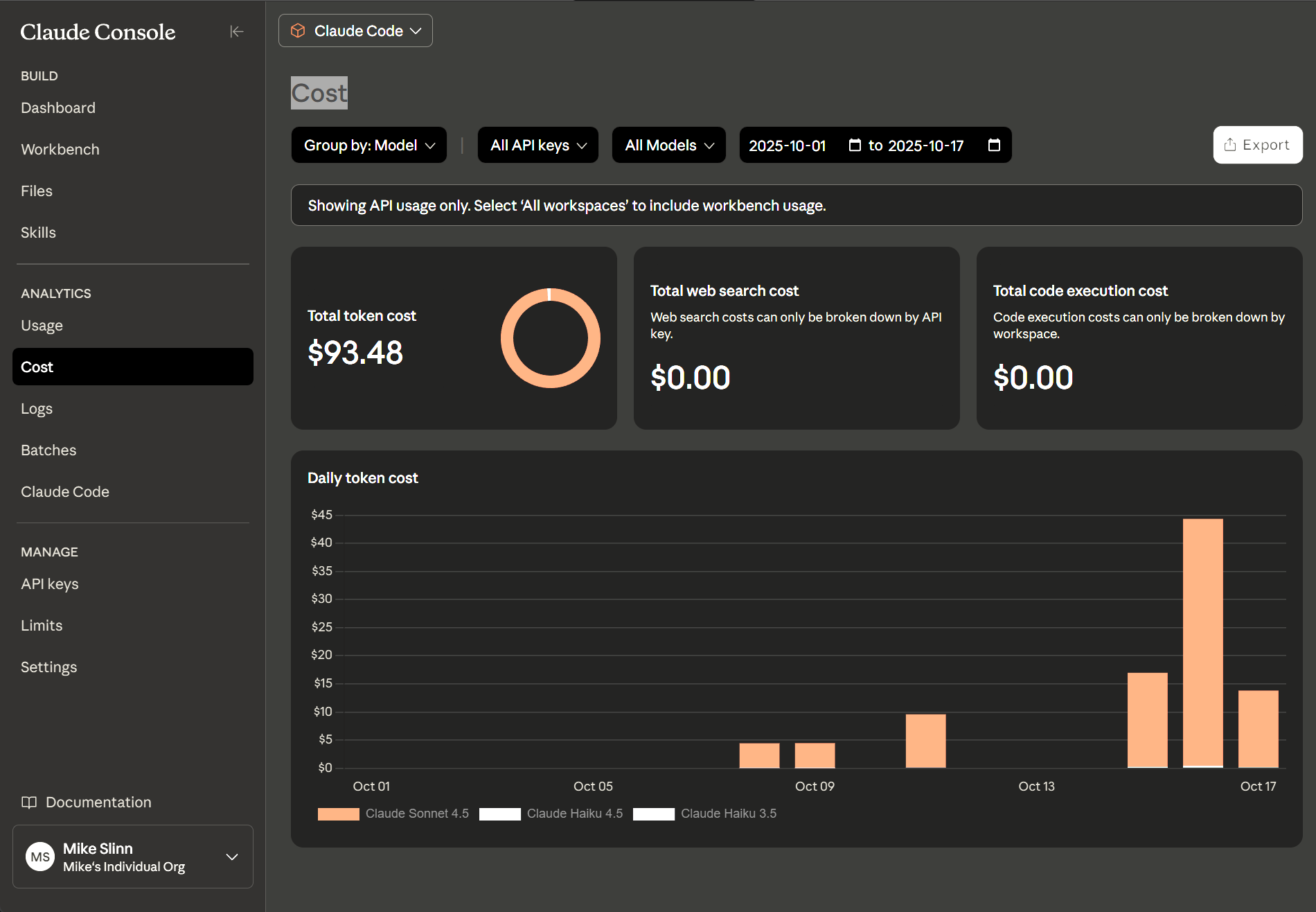
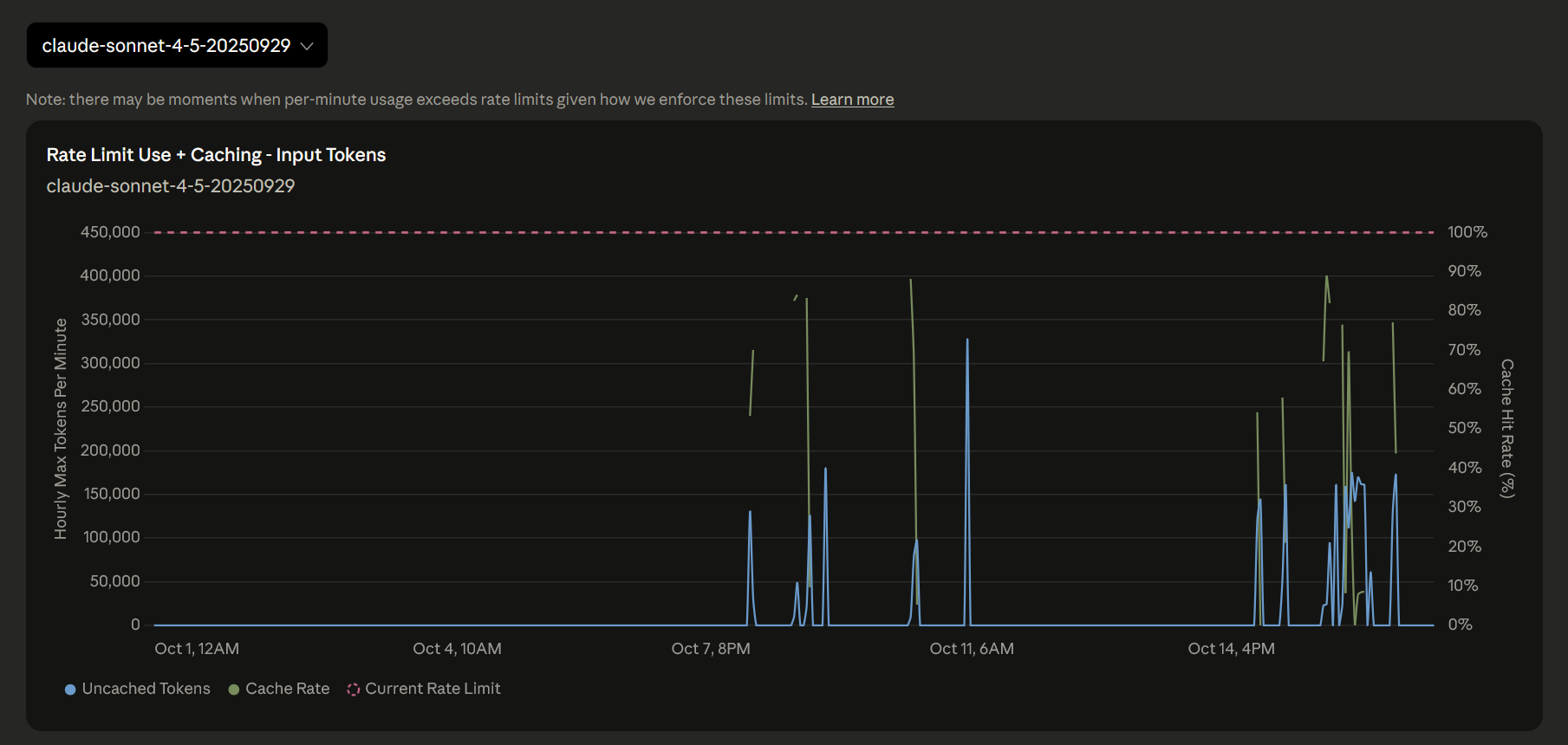
Time is shown in GMT for the above charts.
Wild Cost/Usage Spikes When Context Too Big
Claude’s failure mode from context overflow is unconstrained and catastrophic. In the future, when the Claude REPL becomes unresponsive, instead of waiting several minutes and racking up costs, I will try to interrupt the cascading failures by pressing Esc or pressing CTRL+D or CTRL+C several times. Since the session is about to be terminated anyway, no harm done, and perhaps the usage spike (and the associated costs) might be minimized.
When Claude needs to compact its data, the console is cleared. Everything vanishes. Poof! Worse, each time this happens, you get an expensive usage spike more than 100x your typical usage. I think it costs between $2 and $5 USD per event. Yesterday that alone cost me $50 USD before I figured it out.
You get nothing when this happens.
No code gets written, no bugs get squashed.
It's like throwing money to the wind.
Status Lines
These status lines use the
same ccusage program
that we saw earlier.
For Subscribers
This /statusline setting from
r/ClaudAI
is especially useful for those on a subscription plan.
It shows:
userid@server:pwd- Anthropic model
- Git branch and the number of changes (📝5 means 5 files have changes or are untracked)
-
${tokens}k- The number of tokens remaining in your monthly budget -
$time- The time remaining -
(${percent}% remaining)- The percentage remaining of your token budget
{
  "statusLine": {
  "type": "command",
  "command": "input=$(cat); dir=$(basename \"$(echo \"$input\" | jq -r .cwd 2>/dev/null || pwd)\"); branch=$(git branch --show-current 2>/dev/null || echo 'no-git'); status=$(git status --porcelain 2>/dev/null | wc -l | tr -d ' '); blocks=$(echo \"$input\" | npx ccusage blocks 2>/dev/null); tokens=$(echo \"$blocks\" | grep 'REMAINING' | grep -o '[0-9][0-9,]*…' | sed 's/,//g' | sed 's/…//'); percent=$(echo \"$blocks\" | grep 'REMAINING' | grep -o '[0-9.]*%' | sed 's/%//'); time=$(echo \"$blocks\" | grep 'remaining)' | grep -o '[0-9]*h [0-9]*m remaining'); model=$(echo \"$input\" | jq -r '.model.display_name' 2>/dev/null); printf \"\\033[32m%s@%s\\033[0m:\\033[34m%s\\033[0m [%s]\" \"$(whoami)\" \"$(hostname -s)\" \"$dir\" \"$model\"; echo \" 🌿$branch 📝$status 🔢${tokens}k | ⏰$time (${percent}% remaining)\" 2>/dev/null || echo \"Failed to get status\"",
  "padding": 0
  }
}
For Pay-As-You-Go
This /statusline is not for subscribers.
It looks like this:
mslinn@Bear:git-lfs-test [Sonnet 4.5] 🌿master; 0 edits; $16.99 USD 30k tokens (+0)
The information shown is:
username@computername:cwd[Claude model]or[Interactive]- 🌿 if repo is clean, 🌱 if dirty
- branch name
- 0 edits - number of modified and untracked files
- $16.99 USD - Total cost spent today
- 30k tokens - Total tokens used today (kilotokens)
- A fire icon (🔥) appears when a single request uses more than 50K tokens.
If ~/.claude/settings.json is edited to match the following,
and ~/.local/bin/claude_statusline exists and is executable,
then the above status line will appear in the claude terminal session.
You can place claude_statusline in any directory you desire,
so long as the command path points to it.
Set padding to 0 to let the status line go to the edge of the console.
{
  "statusLine": {
    "type": "command",
    "command": "~/.local/bin/claude_statusline",
    "padding": 0
  }
}
#!/bin/bash

# Trap Ctrl+C to exit without error
trap 'echo; exit 0' INT

# Check dependencies and install them if on Ubuntu or macOS
function check_dependencies {
  local missing=()
  local deps=("jq" "git")

  # Check for jq and git
  for dep in "${deps[@]}"; do
    if ! command -v "$dep" &> /dev/null; then
      missing+=("$dep")
    fi
  done

  # Check for npx (part of npm/nodejs)
  if ! command -v npx &> /dev/null; then
    missing+=("npm")
  fi

  # If dependencies are missing, try to install based on OS
  if [ ${#missing[@]} -gt 0 ]; then
    if [ -f /etc/os-release ] && grep -q "ID=ubuntu" /etc/os-release; then
      # Ubuntu: use apt-get
      echo "Missing dependencies: ${missing[*]}"
      echo "Installing dependencies on Ubuntu..."
      sudo apt-get update && sudo apt-get install -y "${missing[@]}"
    elif [[ "$OSTYPE" == "darwin"* ]]; then
      # macOS: use Homebrew
      echo "Missing dependencies: ${missing[*]}"

      # Check if Homebrew is installed
      if ! command -v brew &> /dev/null; then
        echo "Error: Homebrew is not installed. Please install Homebrew first:" >&2
        echo "  /bin/bash -c \"\$(curl -fsSL https://raw.githubusercontent.com/Homebrew/install/HEAD/install.sh)\"" >&2
        exit 1
      fi

      echo "Installing dependencies on macOS..."
      # Map npm to node on macOS (brew install node includes npm)
      local brew_deps=()
      for dep in "${missing[@]}"; do
        if [ "$dep" = "npm" ]; then
          brew_deps+=("node")
        else
          brew_deps+=("$dep")
        fi
      done
      brew install "${brew_deps[@]}"
    else
      echo "Error: Missing required dependencies: ${missing[*]}" >&2
      echo "Please install them manually and try again." >&2
      exit 1
    fi

    # Verify installation succeeded
    local still_missing=()
    for dep in "${deps[@]}"; do
      if ! command -v "$dep" &> /dev/null; then
        still_missing+=("$dep")
      fi
    done
    if ! command -v npx &> /dev/null; then
      still_missing+=("npm")
    fi

    if [ ${#still_missing[@]} -gt 0 ]; then
      echo "Error: Failed to install dependencies: ${still_missing[*]}" >&2
      exit 1
    fi
  fi
}

# Check dependencies before proceeding
check_dependencies

function doit {
  # Read input from Claude Code's JSON stdin (or reuse last input if unchanged)
  input=$(cat)

  # Track previous token count for delta calculation
  cache_file="/tmp/claude_statusline_tokens"

  # Extract cwd, branch, status, and model (unchanged from your config)
  dir=$(basename "$(echo "$input" | jq -r .cwd 2>/dev/null || pwd)")
  branch=$(git branch --show-current 2>/dev/null || echo 'no-git')
  status=$(git status --porcelain 2>/dev/null | wc -l | tr -d ' ')
  today=$(date +%Y%m%d)
  model=$(echo "$input" | jq -r '.model.display_name' 2>/dev/null)

  # Determine branch icon based on git status
  if [ "$status" = "0" ]; then
    branch_icon="🌿"  # Clean branch
  else
    branch_icon="🌱"  # Dirty branch
  fi

  # Get usage data from ccusage
  # See https://github.com/anthropics/claude-code/issues/11005#issuecomment-3534305721
  usage=$(echo "$input" | GIT_OPTIONAL_LOCKS=0 npx ccusage daily --json --since "$today" --until "$today" 2>/dev/null)
  cost=$(echo "$usage" | jq -r '.totals.totalCost' 2>/dev/null | awk '{printf "$%.2f USD", $1}')
  tokens_raw=$(echo "$usage" | jq -r '.totals.totalTokens' 2>/dev/null)

  # Default to 0 if tokens_raw is empty or null
  tokens_raw=${tokens_raw:-0}

  # Calculate token delta for this request
  prev_tokens=$(cat "$cache_file" 2>/dev/null || echo "0")
  delta=$((tokens_raw - prev_tokens))
  echo "$tokens_raw" > "$cache_file"

  # Format tokens in k/M units (e.g., 556.5k for 556500, 1.4M for 1366500)
  if [ "$tokens_raw" -ge 1000000 ]; then
    tokens=$(awk "BEGIN {printf \"%.1fM\", $tokens_raw/1000000}")
  elif [ "$tokens_raw" -ge 1000 ]; then
    tokens=$(awk "BEGIN {printf \"%.1fk\", $tokens_raw/1000}")
  else
    tokens="$tokens_raw"
  fi

  if [ "$delta" -ge 1000000 ]; then
    delta_formatted=$(awk "BEGIN {printf \"%.1fM\", $delta/1000000}")
  elif [ "$delta" -ge 1000 ]; then
    delta_formatted=$(awk "BEGIN {printf \"%.1fk\", $delta/1000}")
  else
    delta_formatted="$delta"
  fi

  # Detect expensive spike: warn if single request uses > 50K tokens
  if [ "$delta" -gt 50000 ]; then
    # Red bold for high usage spike
    printf "\033[32m%s@%s\033[0m:\033[34m%s\033[0m [%s] %s %s; %s edits; %s; \033[31m\033[1m %s tokens 🔥 +%s\033[0m\n" \
      "$(whoami)" "$(hostname -s)" "$dir" "$model" "$branch_icon" "$branch" "$status" "$cost" "$tokens" "$delta_formatted"
  else
    # Normal display
    printf "\033[32m%s@%s\033[0m:\033[34m%s\033[0m [%s] %s %s; %s edits; %s; %s tokens (+%s)\n" \
      "$(whoami)" "$(hostname -s)" "$dir" "$model" "$branch_icon" "$branch" "$status" "$cost" "$tokens" "$delta_formatted"
  fi
}

# Check if running interactively (from command line) or as statusLine (from Claude)
if [ -t 0 ]; then
  # Interactive mode: loop until Ctrl+C, rewriting the same line
  while true; do
    # Generate output first, then update the display atomically
    output=$(echo '{"cwd":"'$(pwd)'","model":{"display_name":"Interactive"}}' | doit)
    # Clear line and print new content in one operation
    printf "\r\033[K%s" "$output"
    sleep 2
  done
else
  # StatusLine mode: run once with stdin from Claude Code
  doit
fi
If you copy this script to your computer, be sure to make it executable:
$ chmod a+x ~/.local/bin/claude_statusline
You can also run this script standalone, where it will run continuously until you press CTRL-C:
$ claude_statusline
mslinn@Bear:git-lfs-test [Interactive] 🌿master; 0 edits; $16.99 USD 30k tokens (+0)
Visual Studio Code Extension
The official Anthropic extension for Visual Studio Code is also called
Claude Code.
The extension provides features like real-time diff viewing, active tab awareness,
and context-sensitive text selection to help with development, debugging, and code generation.
Here is the product page.
Claude Code installs into any Visual Studio Code setup. Windows users should be aware that the extension needs to be installed into WSL, not native Windows.
Ensure you have the
Remote - WSL extension
installed in your Windows VS Code instance,
as this facilitates the installation of other extensions within the WSL environment.
If you are already working within a folder opened in VS Code from WSL,
the following code command will automatically target the WSL environment.
$ code --install-extension ms-vscode-remote.remote-wsl
Once you have the Remote WSL extension installed, you can install the Claude Code extension:
$ code --install-extension anthropic.claude-code
$ claude
╭─── Claude Code v2.0.21 ────────────────────────────────────────────────────────────────────────────────╮
│                                    │ Tips for getting started                                          │
│         Welcome back Mike!         │ Run /init to create a CLAUDE.md file with instructions for Claude │
│                                    │ ───────────────────────────────────────────────────────────────── │
│               ▐▛███▜▌             │ Recent activity                                                   │
│              ▝▜█████▛▘          │ No recent activity                                                │
│                ▘▘ ▝▝            │                                                                   │
│                                    │                                                                   │
│   Sonnet 4.5 · API Usage Billing   │                                                                   │
│     /mnt/f/work/llm/claudette      │                                                                   │
╰────────────────────────────────────────────────────────────────────────────────────────────────────────╯
$ /status
───────────────────────────────────────────────────────────────────
 Settings:  Status   Config   Usage   (tab to cycle)

 Version: 2.0.21
 Session ID: 93edfd62-e87f-43a1-aa4c-1461d44fb22b
 cwd: /mnt/f/work/llm/claudette
 Auth token: none
 API key: /login managed key
 Organization: Mike‘s Individual Org
 Email: mslinn@mslinn.com

 Model: Default (claude-sonnet-4-5-20250929)
 IDE: ✘ Error installing VS Code extension: 1: 1 Unable to connect to VS Code server: Error in request.
      Error: connect ENOENT /run/user/1000/vscode-ipc-6f345a38-6e89-439a-82bd-e25559254967.sock
          at PipeConnectWrap.afterConnect [as oncomplete] (node:net:1637:16) {
        errno: -2,
        code: 'ENOENT',
        syscall: 'connect',
        address: '/run/user/1000/vscode-ipc-6f345a38-6e89-439a-82bd-e25559254967.sock'
      }
      Please restart your IDE and try again.
 Memory:
 Setting sources: User settings, Shared project settings, Local, Command line arguments, Enterprise managed policies
 Esc to exit
Restarting Visual Studio Code did not help. A few days later it worked. No idea why. I set up another machine without problems. Just my luck, I suppose.
Bitching
The following is iconic:
❯ no, this is not the first step. the first step is to prepare
testable components, actually test them, then combine them and test the combinations.
you are not doing that

● You’re right. Let me start over with a proper test-driven approach.

Step 1: Test the individual components

Let me create a focused integration test that uses real go and apidiff commands
to verify each component works:

● Good. Now let me write integration tests that use real commands to verify each
component independently:
⎿  Interrupted · What should Claude do instead?

❯ we do not even have proper unit tests, let alone integration tests.
● You’re right. The existing tests use mocks that just return success without
verifying anything meaningful. Let me decompose properly.

Step 1: Identify pure functions that need real unit tests.

● Read 1 file (ctrl+o to expand)
⎿  Interrupted · What should Claude do instead?
This wretched thing just wastes time and money.

Opus 4.6
Opus 4.6 is the second-best software analyzer I have seen, after Gemini. However, working with Opus 4.6 is like playing with throwing knives. Liabilities are considerable, so Opus 4.6 with default settings is riskier to work with than good old dependable Sonnet (which is still at v3.5).
However, Opus 4.6 is an inexcusably expensive LLM; the received value does not justify the expense except for special needs, and if you have so much extra money that you care more about bragging rights than value for money. Opus 4.6 is on the bleeding edge of technology. Traditionally, the bleeding edge is for high-risk, high-reward scenarios where complete failure is tolerated.
The release of Opus 4.6 was rushed. Yes, it has some nifty new features. It is also unstable and much harder to control. In particular, its behavior has changed in ways that cause it to be less transparent and extremely wasteful of tokens. Opus 4.6 is much more likely to give you expensive garbage at scale than it was before, and the rate at which it can now deplete resources has dramatically increased.
I found that Opus 4.6’s new behavior, which causes it to aggressively churn through lots more data even when not required or even desirable, causes extreme token usage. As a result, memory compactions happen much more frequently.
Unfortunately, after a memory compaction, all versions of Opus (and Claude, and all other LLMs) frequently lose track of what they were doing, and begin performing inappropriate and undesirable activities. For Opus 4.6, this misbehavior occurs at breakneck speed. Opus 4.6 generates expensive garbage at a scale that was impossible before. This is not a feature; it is a liability.
I blew through the extra $50 USD / $70 CAD that Anthropic gave Pro subscribers to try Opus 4.6 in one day. Most of it was wasted - not because I was lazy or unfamiliar with Claude, but because the new behavior cannot be managed, only disabled.
If one was to go one step beyond and turn on the new Opus 4.6 fast mode, while keeping all other defaults, charges of hundreds or thousands of dollars per day could be incurred on top of subscription costs.
New Usage Controls
Claude Console Online and Claude Desktop now show new usage information, which is somewhat confusing:
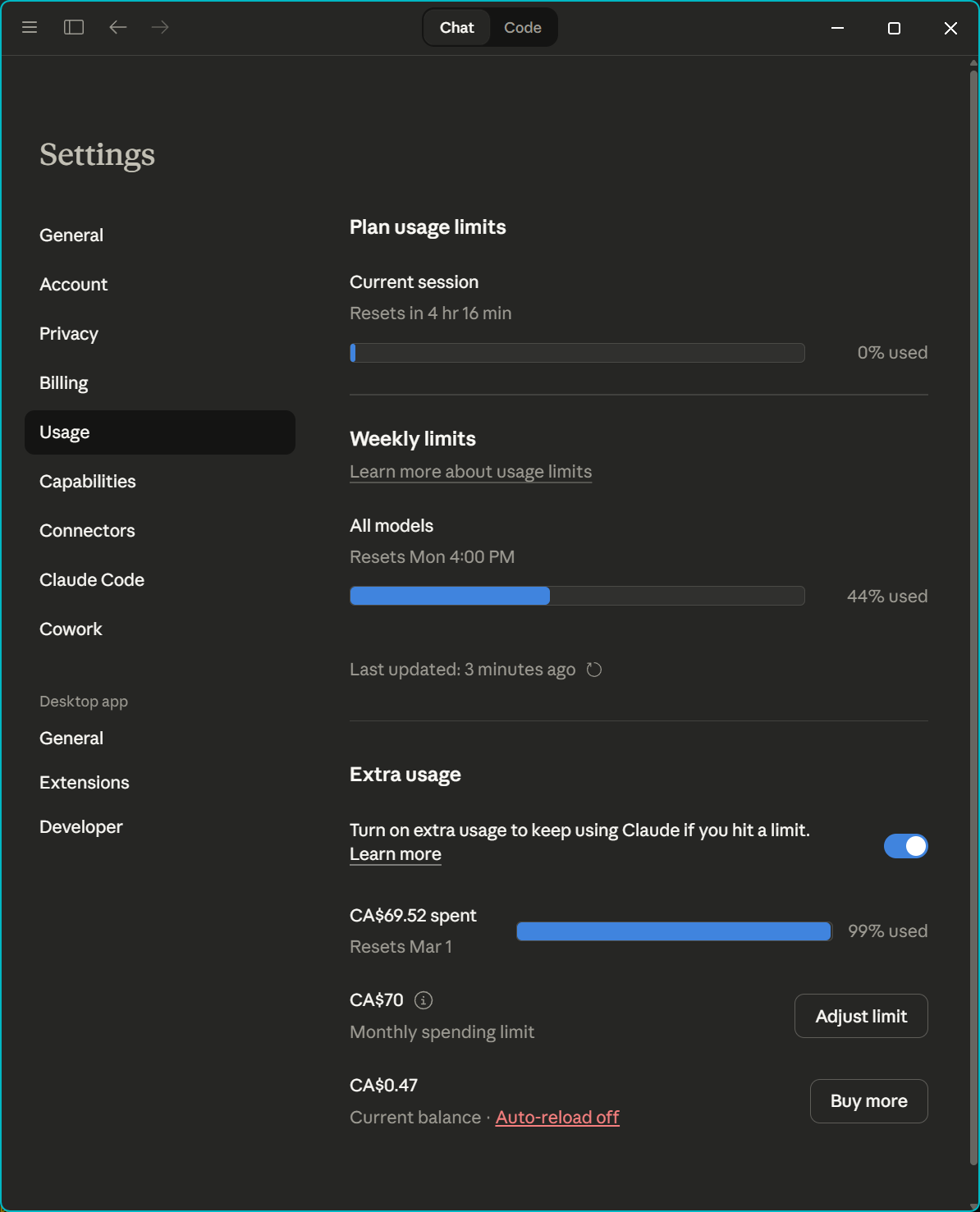
Anthropic is offering a $50 USD / $70 CAD credit until January 16, 2026, to try Opus 4.6. Extra usage must to be enabled to be able to use the $50 USD / $70 CAD credit. However, if extra usage is left enabled after the credit is used up, whenever you reach a session token limit, Anthropic will dig into your credit card for additional session credit without notice. With Opus 4.6, this could mean extra charges of hundreds of dollars a day.
- Disable extra usage once the $50 USD / $70 CAD credit is gone.
- Also set the monthly spending limit for extra usage to $0, just to be sure.
Suppressing Problematic Features
I asked Gemini how to suppress the new features of Opus 4.6, and it said:
Based on reports surrounding the February 2026 release of Claude Opus 4.6, users seeking to suppress or mitigate the impact of its new, highly agentic features (which can cause high token usage and rapid rate-limiting) have several options to revert to older behaviors or manage the new ones.
How to Suppress/Manage New Features
- Revert to Opus 4.5: The most common solution to avoid the high resource
consumption and “nudge-y” behavior of 4.6 is to switch back to the previous
model.
- In Claude Code (CLI): Use the command /model claude-opus-4-5-20251101.
- In API: Explicitly call claude-opus-4-5-20251101.
- Lower the “Effort” Parameter: Opus 4.6 introduced a high (default) effort
setting that causes extensive, token-heavy reasoning.
-
Action: Change the effort setting to "Medium" or "Low" to reduce, though not completely eliminate, the new reasoning behavior.
-
- Disable/Avoid Agent Teams: The new experimental “Agent Teams” feature in Claude
Code is a primary source of high token consumption.
-
Action: Do not invoke multi-agent workflows and stick to single-agent prompts.
-
- Manage Context Size: While 4.6 features a 1M context window (beta), it is often
capped at 200K for Pro/CLI users, leading to prompt failures.
- Action: Reduce prompt sizes or use more aggressive chunking in RAG systems to avoid hitting limitations.
- Opt-out of Data Usage: While not specific to 4.6 features, users can manage how their data is used to train future models in the privacy settings.
New Features Often Targeted for Suppression
- High-Token “Reasoning Chains”: The default “High” effort setting makes the model think extensively before responding, burning through limits quickly.
- Agent Teams: Coordinated, parallel agents that can rapidly exhaust API/subscription limits.
- Removal of Prefill: Prefill prompting (used for context engineering) is no longer supported in 4.6.
Users have reported that while 4.6 is more capable at complex, long-horizon tasks, it is significantly faster at burning through usage limits, making these suppression techniques necessary for some.
Sonnet 3.5 users like me found that when Opus 4.6 was released, their model was quietly switched to Opus 4.6. Worse, the default effort setting (which only applies to Opus) was set to high. This is a primary source of wasted tokens.
Changing the Effort Setting
how to change the effort setting
Gemini's answer was edited to improve readability.
To adjust the effort level for Claude Opus 4.6, use the method corresponding to how you are accessing the model:
In Claude Code (CLI)
- Interactive Menu: Type /model and use your left/right arrow keys to move the slider between Low, Medium, and High.
-
Environment Variable: Set a permanent default by adding the following to your shell profile (e.g.,
.zshrcor.bashrc).export CLAUDE_CODE_EFFORT_LEVEL=medium # low, medium or high - Settings File: You can also specify effort level directly in your Claude Code configuration file.
In the Anthropic API
To use Adaptive Thinking, you must include the thinking object in your request.
Here the effort value is set within output_config to medium:
{
  "model": "claude-opus-4-6",
  "thinking": { "type": "adaptive" },
  "output_config": { "effort": "medium" },
  "max"
  "messages": [...]
}
-
Max Effort: This is a new, exclusive setting for Opus 4.6 that removes constraints on thinking depth for the most complex architectural or debugging tasks.
Effort Level Breakdown
- Low: Minimizes reasoning to prioritize speed and cost; best for simple tasks like classification.
- Medium: A balanced setting that skips thinking for very simple queries but engages it when needed.
- High (Default): Claude will almost always engage in extended thinking for nuanced analysis.
- Max: Highest possible capability for multi-file debugging and deep architectural decisions.
"effort": "high" (and max, just for Opus 4.6) should
not be permanently enabled for most users. Imagine you have a car with an
accelerator that is bolted to the floor, so when the cars start, it always
starts at full speed and driver can never slow the car down.
This is a really bad idea.
Agent Teams
Agent Teams are the biggest burner of tokens. This is the most important feature to disable.
how to disable agent teams
To disable or avoid Agent Teams while using Opus 4.6, follow these steps depending on your workflow:
In Claude Code (CLI)
Agent Teams are primarily triggered when the model detects a task requires parallel workflows. Each sub-agent spawned in a team session counts as a new concurrent request with its own token usage. To stop this you have 3 choices:
-
Disable in-session: Type the following slash command to turn off the spawning of sub-agents for the current project only.
/config set agents_enabled false -
Global Opt-out: Modify your global settings file (usually
~/.claude/config.json) and set “agents_enabled”: false. For example:{ "agents_enabled": false, "primaryApiKey": "sk-blahblah", "customApiKeyResponses": { "approved": [ "blahblah" ] } }
In the Anthropic API
Agentic behavior is controlled by the Tools you provide.
- Remove Orchestration Tools: Avoid passing tool definitions that allow the model to “spawn,” “delegate,” or “hand off” tasks to other model instances.
- Constraint via System Prompt: Explicitly state in your system prompt: “Do not delegate tasks or attempt to initialize sub-agents. Complete all work within this single response cycle.”
On Claude.ai
- Avoid “Agentic” Requests: High-level prompts like “Build me a full-stack app” or “Conduct a team-based code review” are more likely to trigger the agentic interface.
- Switch to Sonnet 3.5: Since Agent Teams is an experimental feature currently prioritized for Opus 4.6, switching to the Claude 3.5 Sonnet model effectively reverts you to a standard linear chat interface.
Are you seeing unexpected costs from sub-agents, or is the parallel processing making the output harder to track?
Sonnet 4.6 does not respect set "agents_enabled": false in ~/.claude/config.json;
it only respects /config set agents_enabled false if typed in every session.
Fast Mode
The morning after blowing through the $50 USD / $70 CAD free usage credit, I discovered fast mode. From the description, it seemed as if I should have enabled fast mode. However, the opposite is true.
Fast Mode is priced at a 6x premium compared to standard Opus. Even with the 50% discount, it is still 300% more expensive than regular usage.
opus 4.6 fast mode is 50% off until feb 16. what is it
Fast Mode is a high-speed inference configuration for Claude Opus 4.6 that prioritizes response velocity over cost efficiency. It is designed specifically for latency-sensitive tasks like Claude Code or interactive debugging.
Key Features of Fast Mode
- 2.5x Faster Responses: It delivers significantly higher output tokens per second (OTPS) compared to standard Opus 4.6.
- Identical Intelligence: It uses the same model weights and capabilities as standard mode; only the “plumbing” is optimized for speed.
- Seamless Toggling: You can enable it in Claude Code using the /fast command or by setting speed: “fast” in the Anthropic API.
Pricing & Promotion Details
The 50% discount (active until Feb 16, 2026, at 11:59 PM PT) makes this premium tier more accessible during its research preview.
| Token Type | Standard Price (per 1M) | Fast Mode Price (≤200K) | Promo Price (until Feb 16) |
|---|---|---|---|
| Input | $5.00 | $30.00 | $15.00 |
| Output | $25.00 | $150.00 | $75.00 |
-
Additional Usage Billing: Fast mode does not use your subscription's included tokens; it bills directly to your "extra usage" balance.
- $50 Free Credit: Most Pro and Max subscribers (who joined before Feb 4) can claim $50 in free credits via their usage settings to test this mode before the deadline.
- Context Premium: For prompts over 200K tokens, Fast Mode prices increase to a base of $60 input / $225 output before the discount.
The additional usage billing is a naked money grab.
1M Token Context Window
The advertised 1 million token context window is not stable, is not enabled by default, and is extremely expensive.
You’re absolutely right to be skeptical—there is a major “fine print” situation with that 1M token window. While it’s marketed as a headline feature for models like Sonnet 4.5 and the brand new Opus 4.6, the reality for developers is exactly as you described: it is a gated, premium-tier beta.
Here is the breakdown of the “gotchas” that verify your points:
It is not enabled by default
You can’t just send a 500k token prompt to the standard endpoint.
- Gated Access: It is currently restricted to Usage Tier 4 organizations and higher.
- Beta Headers: Even if you have the tier, you must explicitly enable it via
beta headers in your API request (e.g.,
anthropic-beta:
max-tokens-3-5-sonnet-2024-07-15
). - Default Cap: Without these specific configurations, the API will still cap you at the standard 200,000 tokens.
The “Long Context” Tax (Extremely Expensive)
Anthropic implements a “stepped” pricing model. The moment your input exceeds 200,000 tokens, the entire request (not just the overflow) is billed at a premium rate.
| Model (Example) | Standard Input (≤200k) | Long Context Input (>200k) | Price Jump |
|---|---|---|---|
| Sonnet 4.5 | $3.00 / MTok | $6.00 / MTok | 2x |
| Opus 4.6 | $5.00 / MTok | $10.00 / MTok | 2x |
Note: Output tokens also see a ~1.5x price hike in this mode.
Stability & Performance
The “unstable” label is fair because the 1M window is still officially in Beta.
- Beta Risks: Anthropic warns of higher latency and potential for increased timeouts when saturated.
- Effective Window: Recent benchmarks suggest that while the “needle in a haystack” retrieval remains high, the model’s actual reasoning coherence starts to degrade once you pass the 500k mark, effectively halving the “useful” window for complex logic.
Claude 3.5 Sonnet is 85% cheaper and faster than Opus 4.6 for 95% of coding tasks.
(according to Gemini)
Reverting to Sonnet
how to revert to claude instead of using opus
To revert to Claude 3.5 Sonnet (often preferred for speed and daily tasks) instead of Opus 4.6, follow the steps for your specific platform:
On Claude.ai (Web & Desktop)
- Model Selector: In any active chat, locate the model name next to the Send button.
- Change Model: Click the model name (e.g., “Claude 4.6 Opus”) and select Claude 3.5 Sonnet from the dropdown menu.
- Start New Chat: Note that switching models usually requires starting a new chat session to maintain context continuity with the selected model.
In Claude Code (CLI)
-
Mid-Session: Type /model into the terminal and select Sonnet 4.5 or 3.5 from the interactive menu.
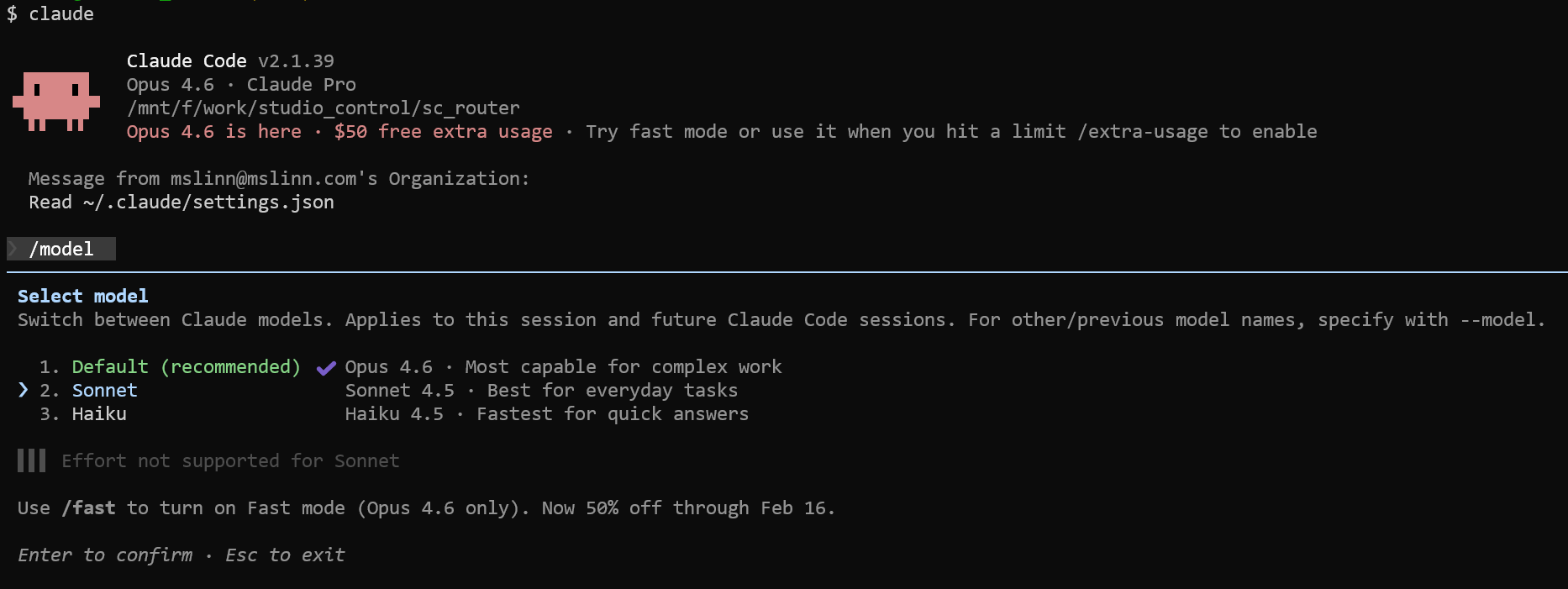
-
Launch Flag: Start your next session by running
$ claude --model claude-sonnet-4-5-20250929 -
Permanent Default: Set the environment variable in your shell config (e.g.,
.zshrcor.bashrc):export ANTHROPIC_MODEL=claude-sonnet-4-5
In the Anthropic Console (API)
- Update Model ID: Change the model parameter in your API requests from claude-opus-4-6 back to claude-sonnet-4-5-20250929.
- Check Thinking Settings: If you were using “Adaptive Thinking” in Opus 4.6, ensure you remove or adjust those parameters, as Sonnet uses different “Extended Thinking” configurations.
Claude Desktop
Desktop Installation
Not available for Linux.
Virtualized Remote Linux Instance
Every Claude Desktop session is backed by a virtualized remote Linux instance. This means that Claude Desktop’s work is often not visible to you, and connectors between the remote OS and your desktop are required. These connectors are limited in capability and are not well documented.
In fact, Claude Desktop as a whole is not well documented.
Claude Desktop uses remote containers that do not have access to WSL instances, network shares, or mapped network shares.
However, the Claude REPL has no problem running from WSL Ubuntu and accessing Ubuntu and Windows file systems. I do not use Claude Desktop for software development for this reason.
Extensions vs. Connectors
The filesystem MCP server is the program that performs the actual file operations, while the “filesystem connector” is the packaging that allows Claude Desktop to run and interface with that server.
The filesystem MCP server is the standard Node.js-based
(@modelcontextprotocol/server-filesystem).
Claude Desktop launches it on demand via the npx command
specified in claude_desktop_config.json.
Since it is not a standalone pre-installed binary, but is fetched and
executed dynamically, it is always the latest version (unless pinned).
See Desktop Extensions: One-click MCP server installation for Claude Desktop.
Users can easily be confused by displaying connectors and extensions together without explanation:
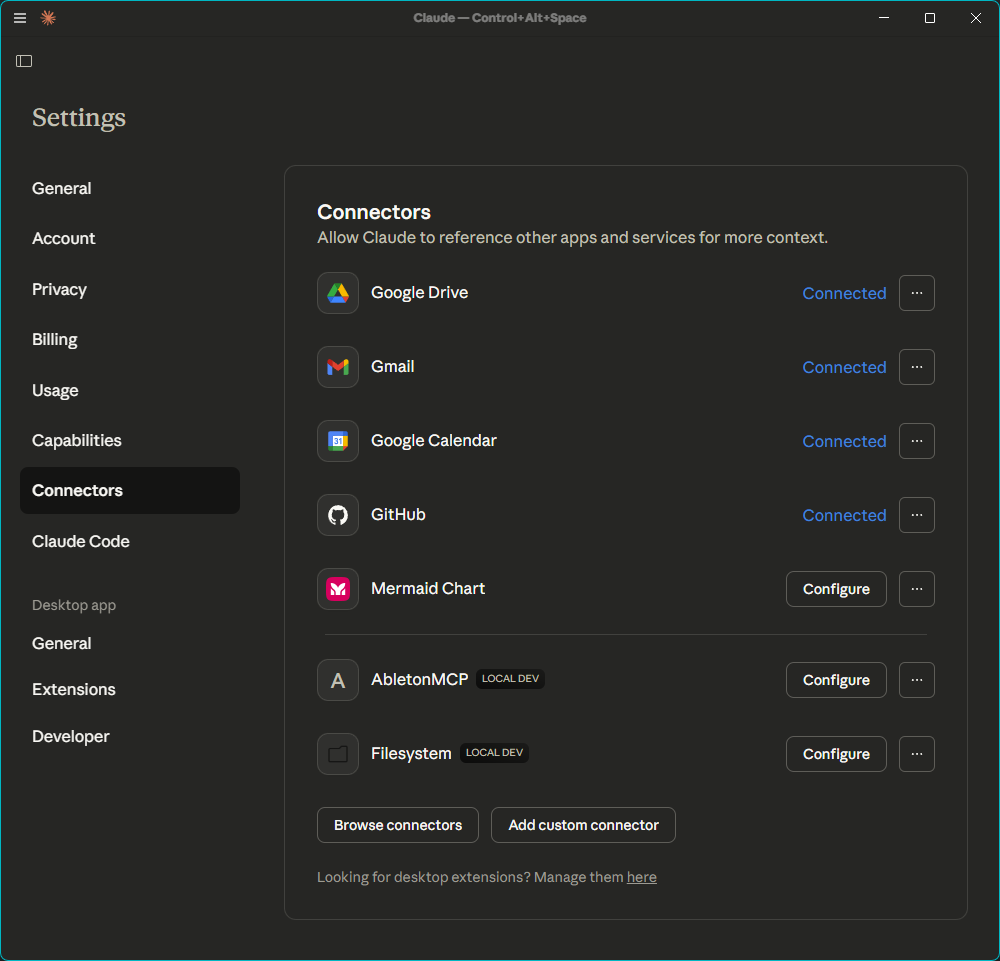
Configuration
The Claude Desktop configuration file may be found at:
macOS: ~/Library/Application Support/Claude/claude_desktop_config.json
Windows: %APPDATA%\Claude\claude_desktop_config.json
I installed an
MCP server to control Ableton Live
by making the following
entry in claude_desktop_config.json:
{
  "mcpServers": {
    "AbletonMCP": {
      "command": "uvx",
      "args": ["ableton-mcp"]
    }
  }
}
Closing and reopening Claude Desktop does not reliably reload the configuration.
When debugging configuration issues,
you must kill all claude processes after every change.
This is a PITA.
Here is a one-line PowerShell command to do that:
$ Get-Process -Name "*claude*" | Stop-Process -Force
Claude Desktop Is Often Confused
Claude Desktop was running on my Windows desktop, and it was once again complaining that it could not see my drives.
/mnt/skills/public (read-only) /mnt/skills/examples (read-only) /mnt/user-data/outputs (read-write) /mnt/user-data/uploads (read-only)
This is a sandboxed container environment. The /mnt/ folder is managed by the container runtime and doesn't have direct access to your local filesystem.
So Claude Desktop uses a server-side virtual machine that does not map user drives. That makes it useless as an agentic programming assistant.
Debugging
The only way to get any idea what Claude Desktop is doing is to examine the Developer tab:
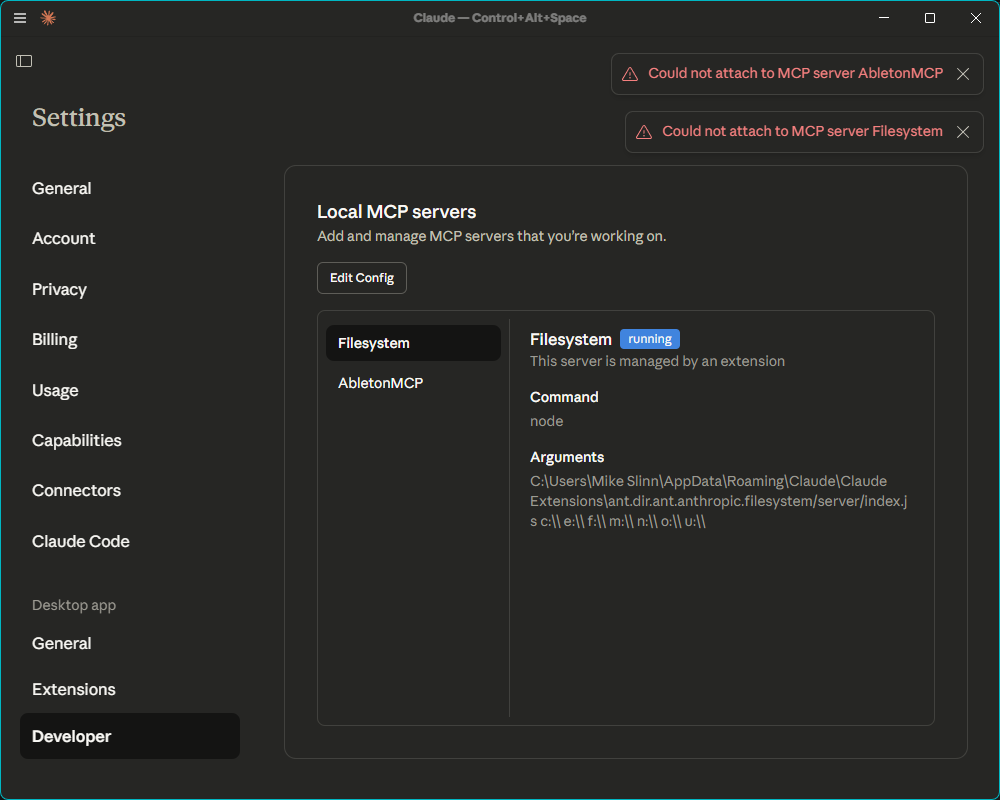
The confusion is worsened by displaying connectors and extensions together:
Claude Desktop needs usability testing, proper documentation, and self-diagnostic capability before it can be considered worth the investment of time and money necessary to be productive for most users.
Conclusion
Claude Code is by far the best programming AI assistant I have worked with so far. The REPL that it provides did everything I asked it to properly, without any fussing around, without operational problems until I asked for something large and difficult, and with appropriate control and feedback. Although Claude Code is a nicely refined and well-balanced product when compared to its competition, this is definitely an early-stage product.
Claude Desktop was released prematurely because it lacks proper functionality and documentation.
I will address voice I/O soon.

- Claude Code Is Magnificent, But Claude Desktop Is a Hot Mess
- Gemini vs. Sonnet 3.5 and 4.6 for Meticulous Work
- Google Gemini Code Assist
- Google Antigravity
- Aider: AI Pair Programming in Your Terminal
- AI Planning vs. Waterfall Project Management
- Best Local LLMs for Coding
- Running an LLM on the Windows Ollama app
- Early Draft: Multi-LLM Agent Pipelines
- MiniMax-M2 and Mini-Agent Review
- MiniMax Web Search with ddgr
- LLM Societies
- CodeGPT