Published 2026-04-03.
Time to read: 2 minutes.
wsl collection.
Windows Voice Access
This is a feature of Windows 11 designed to replace older tools.
After an initial one-time download of language files, all speech-to-text and command processing happens strictly on your device without an internet connection.
- Search for Voice Access in the Start menu or go to Settings / Accessibility / Speech.
- Say “voice access wake up” or press the mic button to activate voice access.
- Toggle voice access by pressing Windows+CTRL+S.
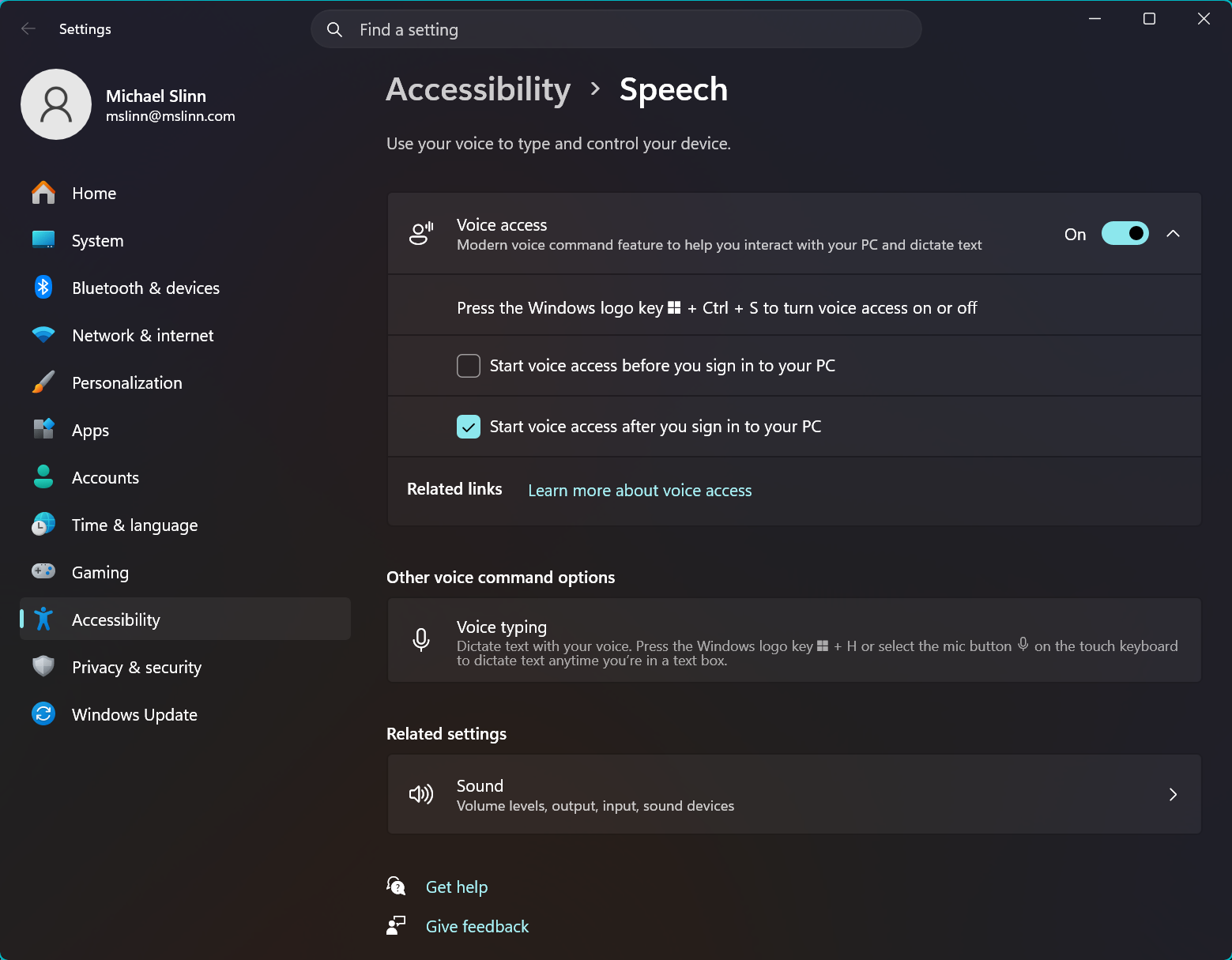
With voice input enabled, say “what can I say” to see a list of commands.
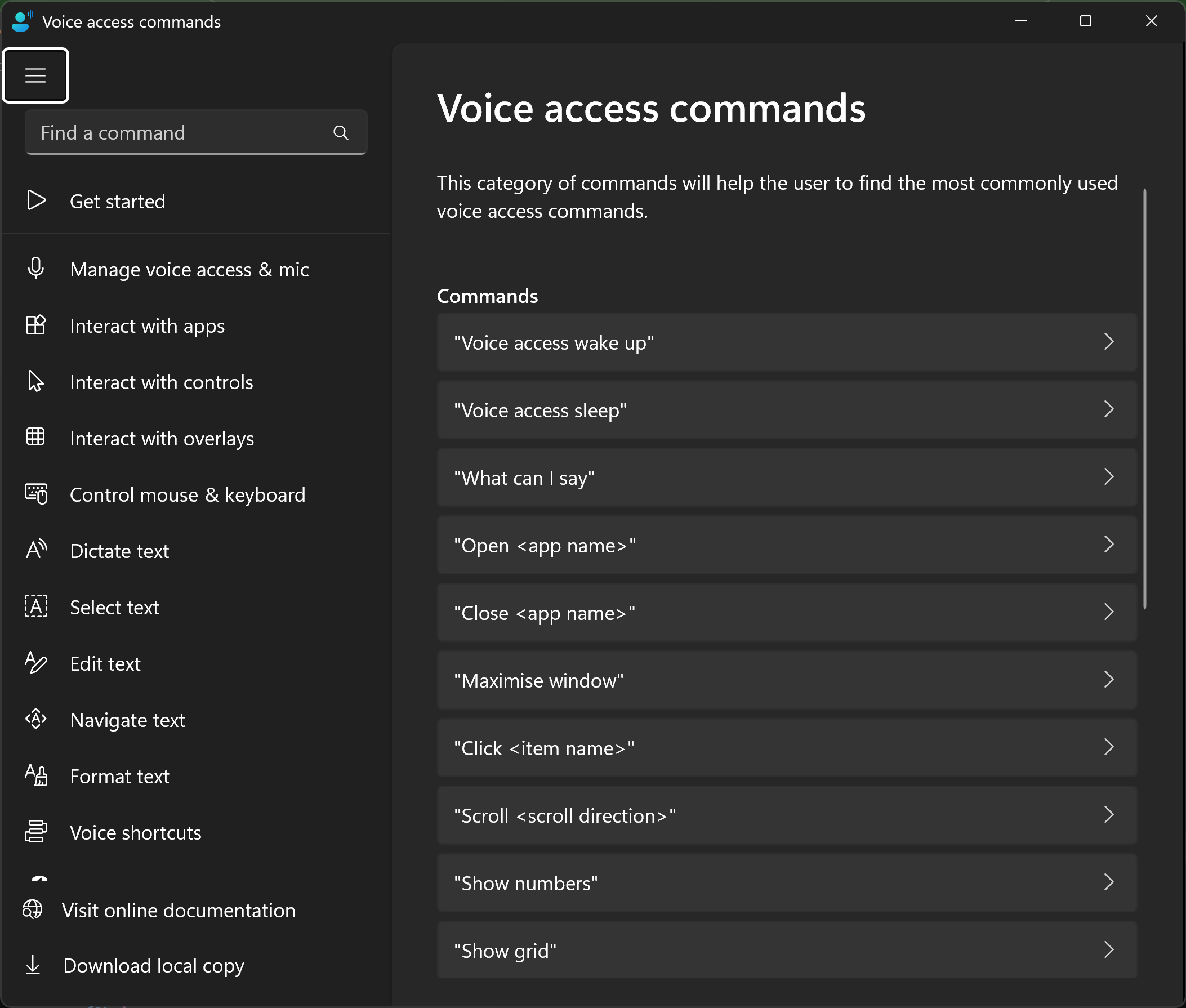
There are so many possible commands that they are grouped.
This would not be a Microsoft product without some anti-competitive discrimination. Voice access does not recognize Firefox as a web browser, but Chrome is recognized (Microsoft Edge is based on Chrome.)
The only way to make Microsoft Voice Access create a new Firefox tab is to say “press control t”. To close the tab, say “press control F4”. I was unable to create a new voice shortcut that worked for Firefox.
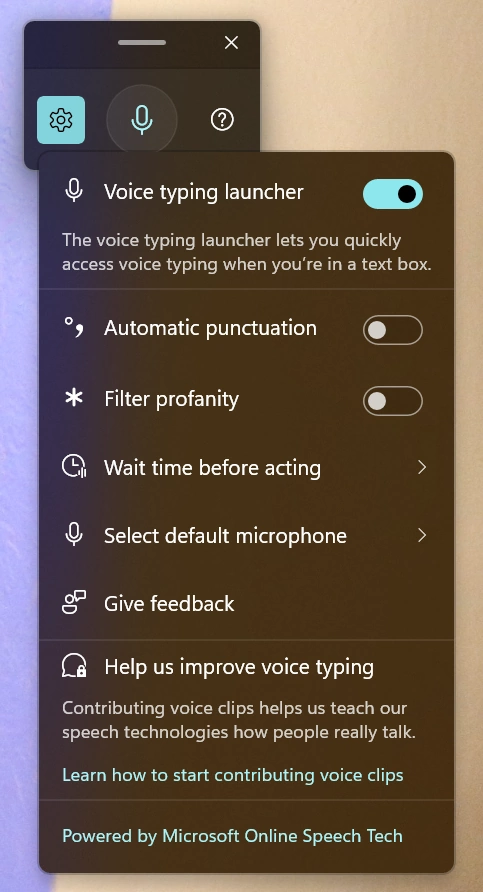
Windows System Dictation (Older)
Windows System Dictation is free and works really well with Aider, regardless of whether it is installed as a Native Windows app or as a WSL app. Processing for Windows System Dictation requires an active internet connection because your audio is processed in Microsoft's cloud. Voice recognition is initatied by clicking a button.
- Select the window containing the Aider prompt.
- Press Win+H.
- Speak your instructions.
Audio Bridge: WSL2 to Windows (For Voice Agents)
If using Claude Code’s /voice feature or similar LLM voice tools, you need to set up Pulseaudio to bridge WSL to Windows.
-
Install Audio Tools in WSL: sudo apt update && sudo apt install -y pulseaudio-utils.
-
Set Audio Source: Ensure WSL is using Windows Microphone. In WSL2, you need to use the PULSE_SERVER environment variable to bridge audio:
export PULSE_SERVER=tcp:$(grep nameserver /etc/resolv.conf | awk '{print $2}'); -
ALSA Plugin: If ALSA tools fail, install the plugin: sudo apt install libasound2-plugins.
-
Running Native Windows Voice Commands from Bash You can invoke Windows Speech commands directly from Bash by calling the .exe extension:
- Open Windows Voice Access: cmd.exe /c “start ms-settings:easeofaccess-voice-recognition”
-
TTS Voice Commands: To have WSL output voice through Windows, you can call PowerShell from Bash:
powershell.exe -Command "Add-Type -AssemblyName System.Speech; (New-Object System.Speech.Synthesis.SpeechSynthesizer).Speak('Task Finished')" - Running Native Windows Voice Commands from Bash
You can invoke Windows Speech commands directly from Bash by calling the .exe extension:
-
Open Windows Voice Access:
cmd.exe /c "start ms-settings:easeofaccess-voice-recognition" -
TTS Voice Commands: To have WSL output voice through Windows, you can call PowerShell from Bash:
powershell.exe -Command "Add-Type -AssemblyName System.Speech; (New-Object System.Speech.Synthesis.SpeechSynthesizer).Speak('Task Finished')" -
Vosk or WhisperWriter: Use a lightweight local voice recognition model inside WSL (like Vosk) that passes text to the Windows clipboard via
/mnt/c/Windows/System32/clip.exe.
$ date | clip.exe